Manage Scenarios
Open the Scenarios tab, create scenarios datasets, and manage them from the dashboard.
Manage Scenarios
Scenarios datasets live in the Scenarios tab of the Dataset Library.
Open the Scenarios tab
Open the Dataset Library from the left sidebar, then select the Scenarios tab. The tab lists your scenarios datasets with columns for Scenario Dataset Name, Scenarios, Last Updated, and Created.
From the toolbar you can:
- Generate with Assist — create a dataset and draft its first scenario rows in one step. See Generate with Assist.
- Add new scenarios — create an empty dataset to fill in yourself.
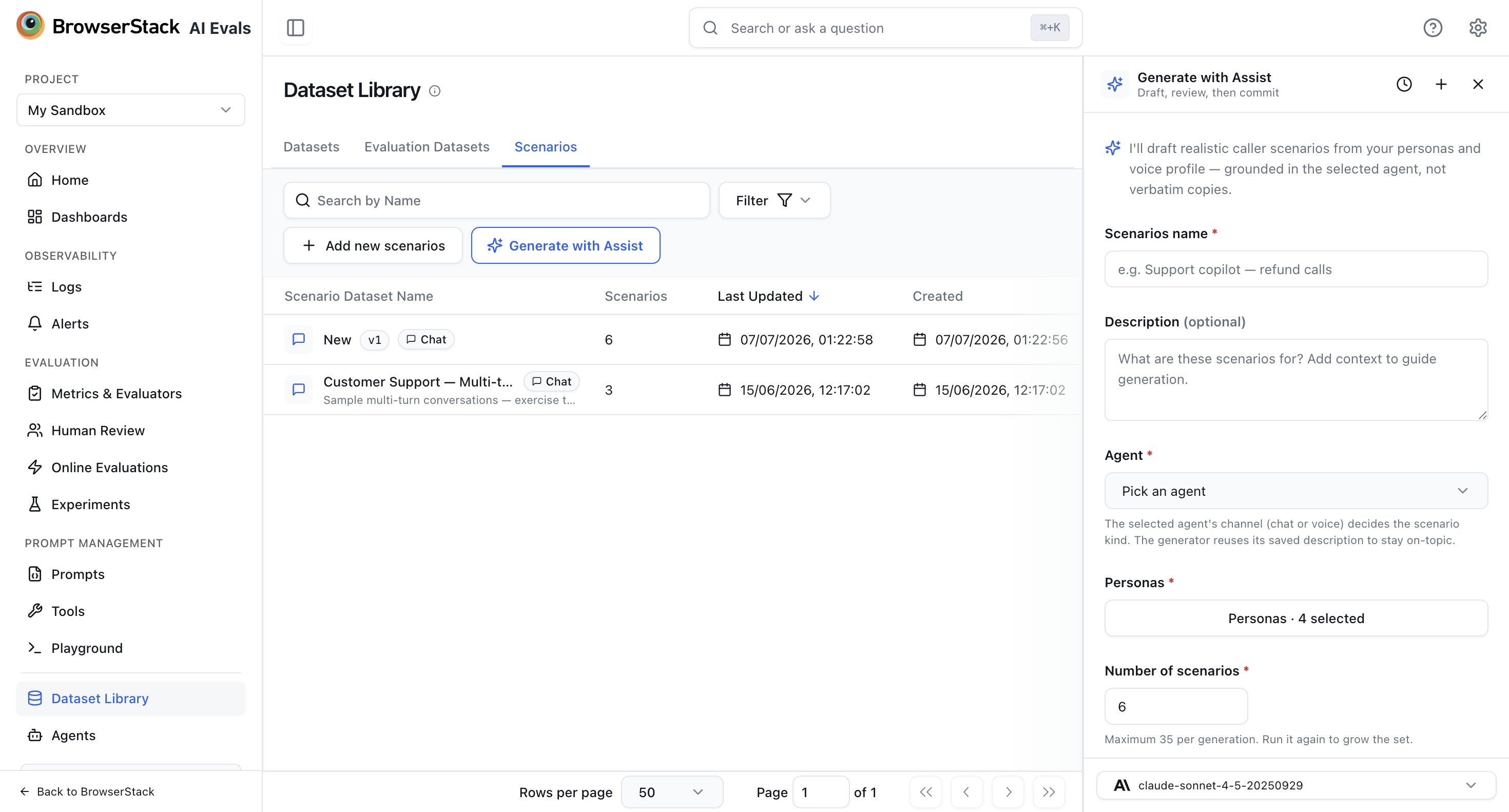
Create a scenarios dataset
On the Scenarios tab, click Add new scenarios.
In the Create new scenarios dataset dialog, enter a Name (for example Support Copilot — golden conversations) and an optional Description, then click Create.
To create a dataset and populate it in one step, use Generate with Assist instead — see Generate with Assist.
The dataset detail page
Opening a scenarios dataset shows three tabs:
- Items — the scenario rows. See Scenario Items.
- Runs — the simulation runs executed against this dataset, so you can see each time it was used and how those runs scored.
- Linked Experiments — the experiments that reference this scenarios dataset, so you can jump straight to any simulation set up from it.
Dataset actions
The three-dot menu on the dataset detail page lets you Rename, Duplicate, or Delete a scenarios dataset.