BrowserStack Local & API Registration
Test private or internal endpoints by routing requests through a secure BrowserStack Local tunnel, and register an API with an OpenAPI spec.
BrowserStack Local & API Registration
When something you want to evaluate isn't publicly reachable — it runs on localhost, inside a VPN, or behind a corporate firewall — BrowserStack Local bridges your private network to the BrowserStack infrastructure so evals can call it. You run the Local binary on your machine and bind a private environment to it; requests to that environment are then proxied through your tunnel.
A private environment can front two kinds of endpoint:
- Agents — your application's own API (the system under test) for experiments and the Conversation Simulator.
- Private LLM models — a self-hosted or on-prem model behind an OpenAI-compatible endpoint.
BrowserStack Local is only needed when the endpoint is private. If the URL is publicly reachable, you can skip this.
1. Download BrowserStack Local
The BrowserStack Local binary establishes a secure connection between your private network and the BrowserStack infrastructure.
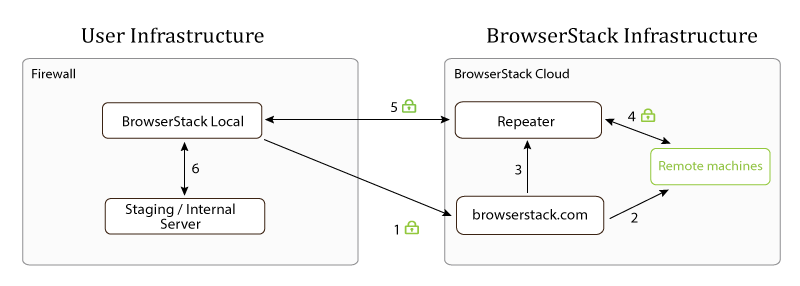
Download BrowserStack Local Binary
2. Run BrowserStack Local
Authenticate and run the binary to open the tunnel:
Fetch your access key
Go to Profile Details > Authentication & Security in your BrowserStack account settings: browserstack.com/accounts/profile/details.
Run the binary
Open a terminal and start Local with your access key:
./BrowserStackLocal <your-access-key>Keep it running while you test the endpoint. Use the same access key you use in the dashboard — evals routes requests through the tunnel started with that key.
3. Point an agent at your private endpoint
With the tunnel open, register the endpoint as an agent and bind it to a private environment so its requests are routed through your tunnel:
Create the agent
Open Agents in the sidebar and create an agent for your endpoint — set the method, URL (for example http://localhost:8000/query), headers, auth, and body.
Use a private environment
In the agent composer, bind the agent to a private environment. Private environments route the agent's requests through the owner's BrowserStack Local tunnel, so a localhost or internal URL resolves on your machine.
Map the response
On the Data Extraction tab, map LLM Output (and optionally Retrieved Contexts) to the fields in your endpoint's JSON response, so experiments know what to score. See Create an Agent.
Test the connection
Use the composer's Send action to fire a test request through the tunnel. If Local isn't running you'll see "Could not reach the BrowserStack Local binary. Make sure it is running on your machine."
Once the agent responds, use it as the API Configuration in an experiment or as the target of a conversation simulation.
Point an LLM connection at a private model
To evaluate a self-hosted or on-prem model, create the private environment on the Private Environments tab of the LLM Connections page, run the Local binary, then add an LLM connection with your model's API Base URL (for example http://localhost:11434/v1) and set its Connection to that environment. The model is then usable in the playground, evaluators, and experiment runs.
Register an API with an OpenAPI spec
As an alternative to registering through the dashboard, you can define your endpoint in an api.yaml file and submit it via the API — useful for scripted or CI-driven setup.
Step A: Define the API (api.yaml)
Modify and save the following configuration as api.yaml based on your API schema. This defines the endpoints for query execution and retrieval, in standard OpenAPI format.
openapi: 3.0.3
info:
  title: Local URL for testing
  description: >
    A RESTful API for running LLM queries.
  version: 1.0.0
servers:
  - url: http://localhost:8000
    description: Staging server
paths:
  /query:
    post:
      summary: Run Query
      operationId: query
      parameters:
        - name: Authorization
          in: header
          required: true
          description: Bearer token for authentication
          schema:
            type: string
            example: "Bearer <access-token>"
      requestBody:
        description: Query request
        required: true
        content:
          application/json:
            schema:
              type: object
              required:
                - input
              properties:
                input:
                  type: string
                  example: "{{input}}"
      responses:
        '200':
          description: Query successful
          content:
            application/json:
              schema:
                type: object
                required:
                  - llmOutput
                  - retrievedContexts
                properties:
                  llmOutput:
                    type: string
                    # Defines which JSON node in the response will contain the LLM response
                    example: response.output
                  retrievedContexts:
                    type: string
                    # Optional: Defines which JSON node contains the retrieval context
                    example: response.retrieval_context
        '401':
          description: Unauthorized - Invalid or missing bearer token
Input Configuration
To feed data into your API during a run, map the input field to a column in your dataset.
Syntax: Use double curly braces (e.g., {{input}}) to reference the specific dataset column.
Output Configuration
There are two methods to capture the output from your LLM:
Option A: Direct API Response
Use this method if your API returns the LLM response directly in the JSON body.
- Configuration: Define the
llmOutputproperty in theapi.yaml. - Mapping: Specify which JSON node contains the text (e.g.,
response.output). Refer to the exampleapi.yamlprovided above.
Option B: Async SDK Trace
Use this method if the SDK is integrated and the output needs to be picked up from a trace generated during the experiment or dataset run.
- Configuration: Include the
AsyncTraceObservationNameproperty in theapi.yaml. - Mapping: Specify the name of the observation trace. Example snippet below.
AsyncTraceObservationName:
   type: string
   description: An optional field for tracing async operations
   example: chat_completion
Step B: Submit the Registration
Once the file is ready, register it using the command line.
Get credentials
Create and fetch the Public Key and Secret Key for your project from the BrowserStack dashboard.
Run the curl command
Navigate to the folder containing api.yaml and run:
curl -u "<public-key>:<secret-key>" -X POST \
https://evals.browserstack.com/api/public/experiments/openapi \
-F "file=@./api.yaml"
Please connect with the AI Evals team for a one-time setup process before running experiments with any private API.
Updating Tokens: To update your authentication access token later, edit the api.yaml file with the new value and resubmit the curl request above.
Related
- Agents — register and manage the endpoints evals calls.
- LLM Connections — connect provider and self-hosted models.
- Create an Experiment — evaluate an agent against a dataset.