Dataset Items
Add items to datasets from the dashboard or SDK — single items, batch upload, or CSV import.
Dataset Items
From the Dashboard
Open any dataset and select the Items tab to view and manage items.
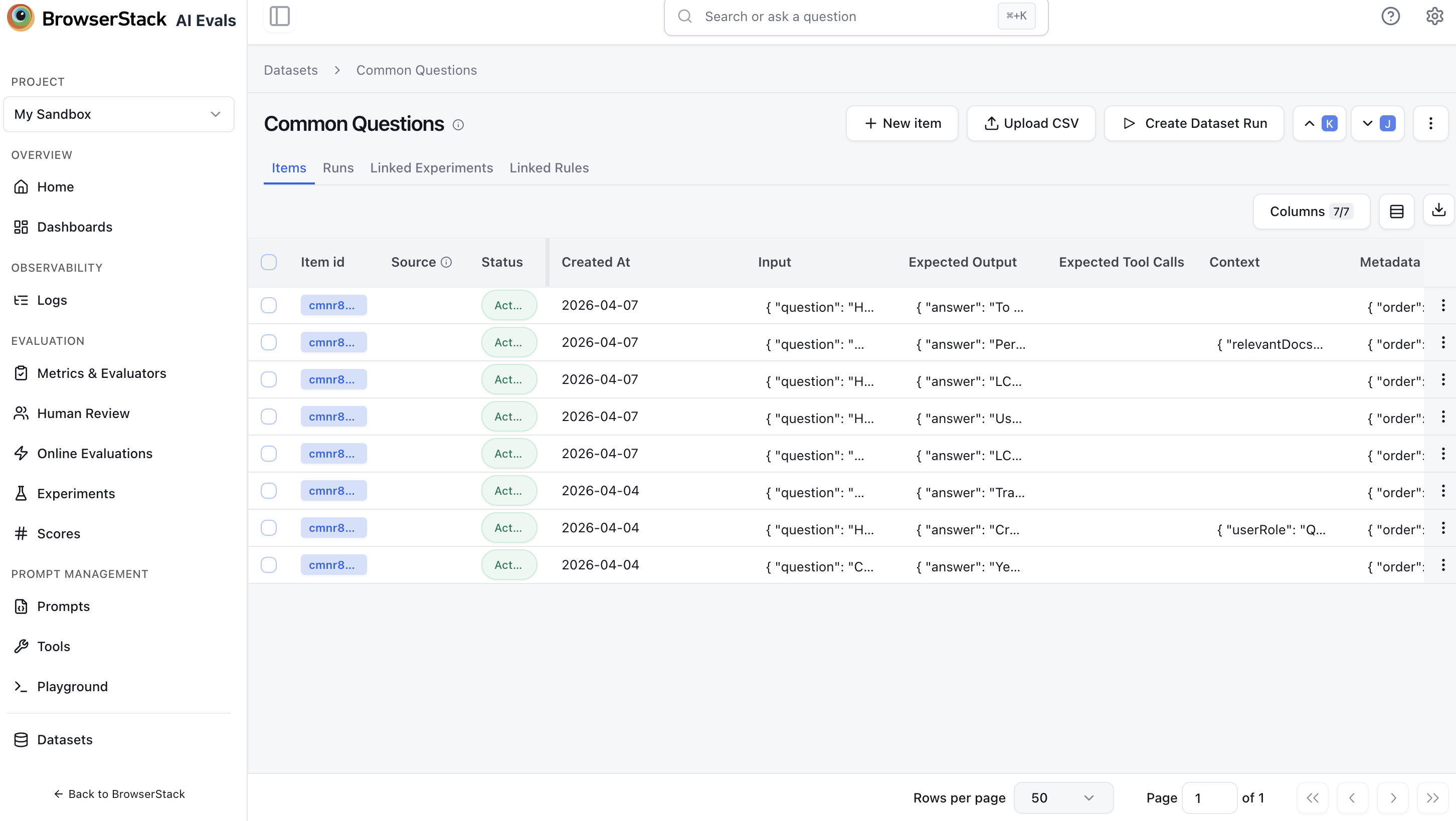
Items Table
Each row shows one dataset item with these columns:
| Column | Description |
|---|---|
| Item ID | Unique item identifier (click to open item detail) |
| Source | Link to the originating trace, observation, or session (if the item was created from a trace) |
| Status | ACTIVE or ARCHIVED |
| Input | JSON viewer (expandable) |
| Expected Output | JSON viewer (expandable) |
| Expected Tool Calls | JSON viewer (expandable, hidden by default) |
| Context | JSON viewer (hidden by default) |
| Metadata | JSON viewer (hidden by default) |
| Added by | Automation rule name or user who created the item |
Use the column visibility toggle to show/hide columns.
Add a Single Item
Click New item in the top-right of the Items tab.
Fill in the form:
- Dataset (required) — pre-selected to the current dataset. You can add the same item to multiple datasets.
- Input (required) — JSON object, array, or double-quoted string
- Expected Output (optional) — JSON
- Expected Tool Calls (optional) — JSON
- Metadata (optional) — JSON key-value pairs
Click Add to Dataset to add the item.
Upload CSV
Click Upload CSV in the top-right of the Items tab.
Drag and drop a CSV file or click to browse. Maximum file size is 100 MB.
Preview the parsed data. The CSV columns are mapped to item fields: input, expectedOutput, context, metadata. Cells containing an HTTPS URL or base64 data are automatically fetched and attached as media (20 MB max per file).
Confirm to import. Items are added to the dataset in bulk.
Item Actions
Click the actions menu on any item row for:
- Archive / Unarchive — toggle the item's status between
ACTIVEandARCHIVED - Delete — permanently remove the item
Bulk Actions
Select multiple items using the checkboxes, then use the Actions dropdown:
- Compare — compare selected items side by side (requires 2+ items)
- Export Selected — export selected items
Use the Batch Export button in the toolbar to export all visible items as CSV or JSON.
Filtering
Click Filters above the Items table to narrow the list. The panel has two tabs:
- Basic — point-and-click conditions, combined with
AND. - SQL — the same filters as SQL-style predicates. You type only the predicate (the body of a
WHEREclause, without theWHEREkeyword), e.g.status = 'ACTIVE'. Predicates are combined withAND(ORis not supported here), and filters round-trip to the Basic tab.
Filterable columns:
| Column | SQL name | What it filters | SQL example |
|---|---|---|---|
| Trace Id | trace_id | The source trace the item was created from | trace_id = 'abc123' |
| Observation Id | observation_id | The source observation | observation_id IS NOT NULL |
| Session Id | session_id | The source session | session_id = 'sess_1' |
| Status | status | ACTIVE or ARCHIVED | status IN ('ACTIVE', 'ARCHIVED') |
| Source | — (Basic only) | How the item was created: MANUAL, SYNTHETIC_SEED, SYNTHETIC_TRACE | — |
| Created At | created_at | When the item was added | created_at > '2026-01-01' |
| Input, Output, Expected Output, Expected Tool Calls, Context, Retrieved Contexts, Reference Contexts, Multi Responses, Rubrics | same names | Text match on the item field | input LIKE '%refund%' |
| Metadata | metadata->>'key' | Match a metadata key-value pair | metadata->>'difficulty' = 'easy' |
Any custom columns defined on the dataset can also be filtered. Use the search box to search across item ID, input, expected output, and metadata, and the date control to limit by creation time.
See Operators by column type for the full SQL operator grammar (LIKE patterns, IN/NOT IN, IS NULL, and the "any of" / "none of" semantics for status).
Item provenance
Each item has a source that records how it was created:
| Badge | Meaning |
|---|---|
| AI generated | Created by Generate with Assist |
| manual | Added through the form, CSV upload, or SDK |
Use the Source filter in the items table toolbar to show only AI-generated or manually created items.
Create and edit items with Assist
Instead of adding and editing items by hand, Assist — the AI agent built into AI Evals — can do it conversationally. Describe what you're testing and it generates items from a task description, production traces, or a document; ask it to change what's there and it edits existing items in bulk — backfilling or rewriting a column, or adjusting the schema. Every change is staged for review before it's written.
From the SDK
Create Items (Batch)
Add multiple items to a dataset at once. Each item has an input, optional expectedOutput, optional context, and optional metadata.
await datasets.createItems({
  datasetName: 'qa-golden-set',
  items: [
    {
      input: { question: 'What is the capital of France?' },
      expectedOutput: { answer: 'Paris' },
      metadata: { difficulty: 'easy' },
    },
    {
      input: { question: 'What is 2 + 2?' },
      expectedOutput: { answer: '4' },
    },
    {
      input: { question: 'Who wrote Hamlet?' },
      expectedOutput: { answer: 'William Shakespeare' },
      context: 'Classic English literature',
    },
  ],
});
result = client.datasets.create_items(
dataset_name="qa-dataset-v1",
items=[
{
"input": {"question": "What is your return policy?"},
"expectedOutput": "Items can be returned within 30 days.",
"metadata": {"category": "returns"},
},
{
"input": {"question": "How do I track my order?"},
"expectedOutput": "Log in and visit the Orders page.",
},
],
)
print(f"Created {result['itemCount']} items")Items are sent in batches of 100.
import com.browserstack.aisdk.eval.model.CreateDatasetItemRequest;
import java.util.List;

List<CreateDatasetItemRequest> items = List.of(
    CreateDatasetItemRequest.builder()
        .input("What causes Northern Lights?")
        .expectedOutput("Solar wind particles interact with Earth's magnetic field...")
        .context("Reference document: Aurora Borealis — NASA")
        .build(),

    CreateDatasetItemRequest.builder()
        .input("How far is the Moon from Earth?")
        .expectedOutput("Approximately 384,400 km on average.")
        .build(),

    CreateDatasetItemRequest.builder()
        .input("What is photosynthesis?")
        .expectedOutput("The process plants use to convert sunlight into energy.")
        .metadata(Map.of("category", "biology", "difficulty", "easy"))
        .build()
);

CreateDatasetItemsResponse result = datasets.createItems("my-dataset", items);
System.out.println("Added " + result.getItemCount() + " items");
Import from CSV
Your CSV file should have headers that match the dataset item fields:
input,expectedOutput,context,metadata
"What is 2+2?","4","math textbook","{""difficulty"": ""easy""}"
"Capital of France?","Paris","geography quiz","{""difficulty"": ""medium""}"
"Explain recursion","A function that calls itself","CS fundamentals","{""difficulty"": ""hard""}"
Supported columns: input, expectedOutput, context, metadata, id, sourceTraceId, sourceObservationId, status. Only input is required. Cells containing an HTTPS URL or base64 data are automatically fetched and attached as media (20 MB max per file).
const result = await datasets.createItems({
  datasetName: 'qa-golden-set',
  fileUrl: '/path/to/dataset.csv',
});
console.log(`Imported ${result.itemCount} items`);
result = client.datasets.create_items(
dataset_name="qa-golden-set",
file_url="/path/to/dataset.csv",
options={"batchSize": 50},
)
print(f"Imported {result['itemCount']} items")CreateDatasetItemsResponse result = datasets.createItemsFromCsv(
"qa-golden-set",
"/path/to/dataset.csv"
);
System.out.println("Imported " + result.getItemCount() + " items");Override batch size:
datasets.createItemsFromCsv("qa-golden-set", "/path/to/dataset.csv", 50);