Online Evaluations
Continuously evaluate incoming production traces using evaluator lists — without running batch experiments.
Online Evaluations
Online evaluations run your evaluator lists automatically on live traces as they arrive. Unlike experiments, which operate on a fixed dataset in batch, online evaluations are always-on rules that score production traffic in the background.
How it differs from experiments
| Experiments | Online Evaluations | |
|---|---|---|
| Trigger | Manual run | Automatic on every new trace |
| Input | Fixed dataset | Live production traces |
| Use case | Pre-release quality gates | Continuous production monitoring |
| Sampling | All dataset items | Configurable sampling rate |
Setting up an online evaluation
Navigate to Online Evaluations in the left sidebar and click + New Online Evaluation.
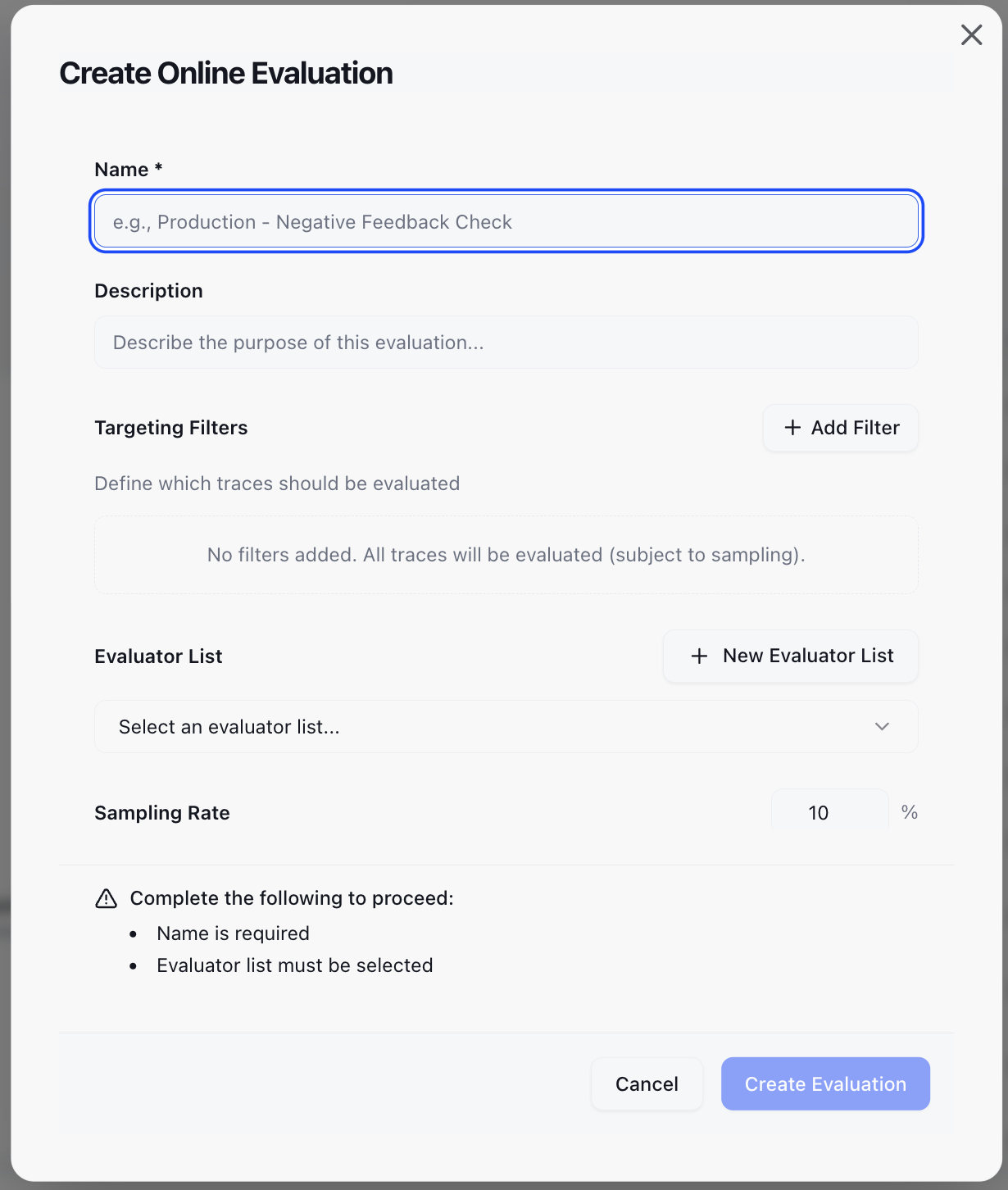
Each rule consists of five parts:
Event Type
Choose whether to evaluate Traces (individual requests) or Sessions (multi-turn conversations). This determines the scope of each evaluation.
Identity
- Evaluation Name: Give it a clear, descriptive name (e.g.,
Production – Negative Feedback Check). - Description: Briefly explain what this rule monitors.
Targeting (Filters)
Decide which traces or sessions to evaluate using the Visual Filter Builder. No code required — select criteria from the UI dropdowns.
| Field | Description |
|---|---|
| Input | Filter by trace input content |
| Output | Filter by trace output content |
| User ID | Filter by user identifier |
| Session ID | Filter by session identifier |
| Metadata | Filter by custom metadata key-value pairs |
| Total Cost | Filter by cost threshold |
| Trace Count | Filter by number of traces (sessions only) |
Multiple filters can be combined with AND / OR logical operators.
If no targeting filters are set, the rule applies to all traces (or sessions) in the project, regardless of environment.
Evaluator List
Select an existing evaluator list (e.g., Hallucination, Safety, Sentiment).
You cannot edit the evaluator list once the rule is created. To change evaluators, create a new rule.
Sampling (Cost Control)
The sampling rate (0–100%) controls what fraction of matching traces are evaluated.
- Default: 10%
- Recommendation: Use 5–10% for high-volume production paths; up to 100% for low-volume or staging environments.
The sampling decision is deterministic per trace ID — the same trace will always be included or excluded for a given rule.
Save and activate
Save the configuration. New rules start Active by default.
Managing rules
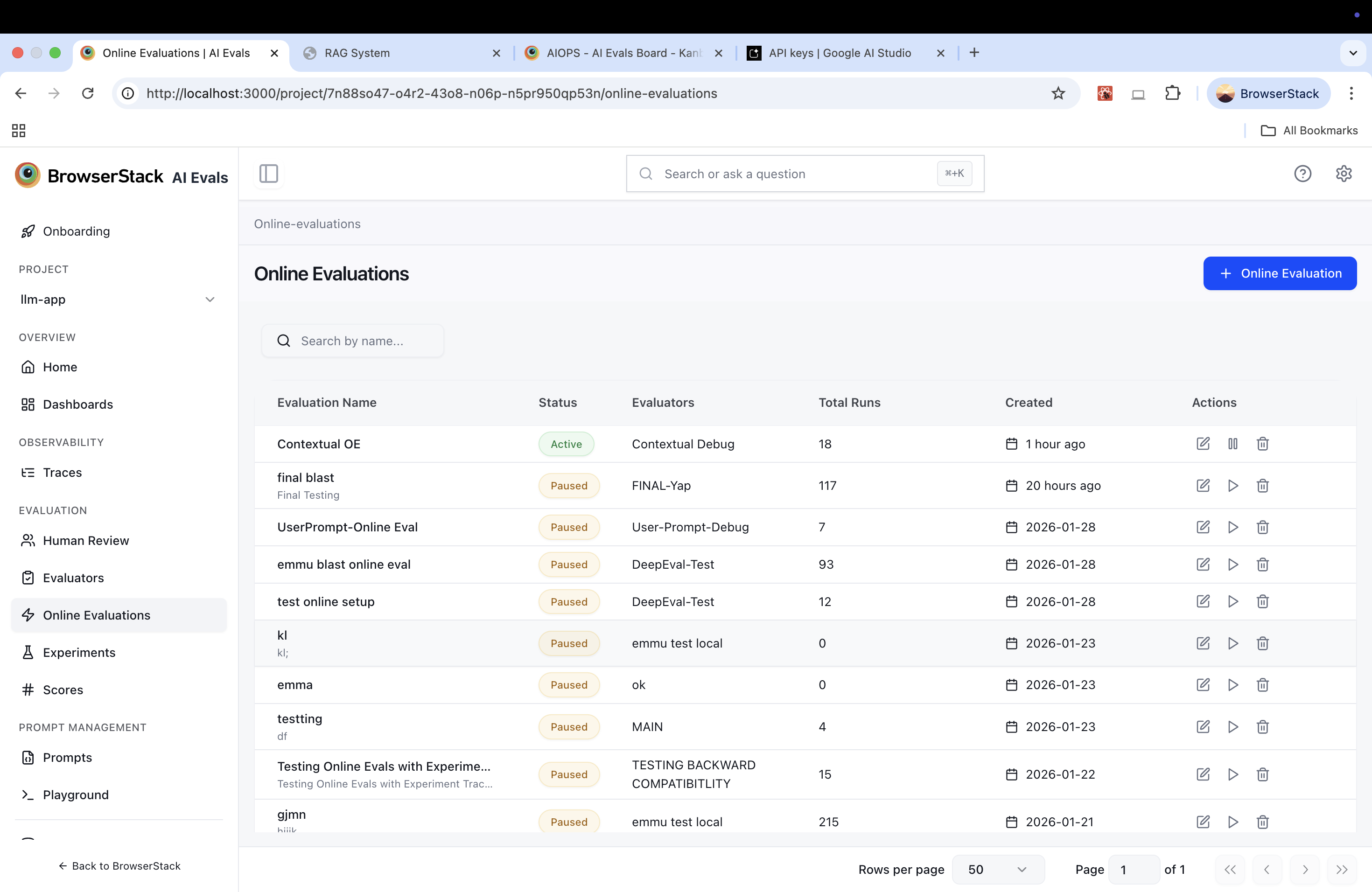
The Online Evaluations section in the left sidebar shows all rules for the project:
| Column | Description |
|---|---|
| Evaluation Name | Name and optional description |
| Status | Active (green) or Paused (amber) |
| Type | Trace or Session — the event scope of the rule |
| Evaluator List | The evaluator list attached to this rule |
| Total Traces | Number of evaluations triggered so far |
| Created | Creation timestamp |
Update Rules
- You can edit the sampling rate and filters.
- You cannot edit the evaluator list.
- Changes apply only to future traces — previous scores are not recomputed.
Pause / Resume
- Manual Pause: You can manually pause or unpause rules at any time.
- API Key Exhaustion: If an LLM provider key runs out of tokens or hits rate limits (HTTP 429), the key is marked as exhausted and a warning banner appears in the UI. The rule itself continues to exist but evaluations using that key will fail until the key is replenished.
When a provider key is exhausted, you must resolve the issue (e.g., add credits or increase rate limits) and then manually click "Resume" in the dashboard. The system does not auto-retry.
Delete
- Stops future evaluations immediately.
- Retains all historical scores for your records.
Viewing results
Trace View (Deep Dive)
On the Trace Detail page, view the Scores section to see:
- Pass/fail status or numeric score
- Reasoning provided by the LLM judge
- Filter your traces by score value to focus on failing interactions
Aggregate View (Trends)
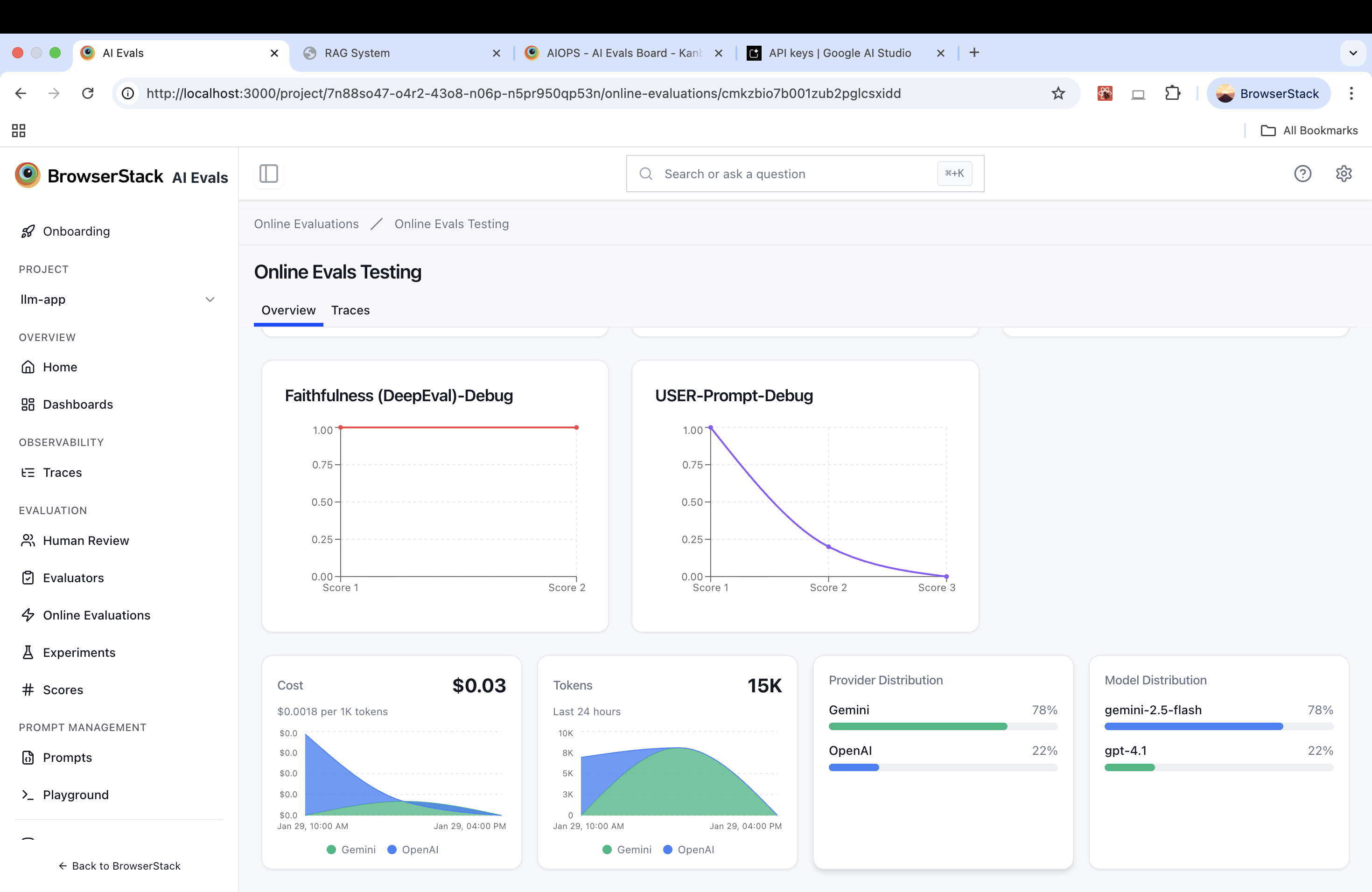
For each online evaluation rule, the dashboard provides:
- Score over time: Trend lines per evaluator
- Cost & Usage: Total evaluation cost, tokens used, and provider/model breakdown
Use this view to correlate quality drops with recent prompt or model changes.
Best Practices
- Start narrow: Don't evaluate everything. Create a rule for a specific pain point, such as "traces with thumbs-down feedback" or "queries longer than 2,000 tokens."
- Watch your costs: Start with a 5–10% sampling rate. Increase only if you need higher confidence and have budget headroom.
- Separate by intent: Create distinct rules for different goals:
- Rule A: "Safety check on 100% of traffic"
- Rule B: "Hallucination check on 5% of complex queries"
Use cases
- Production quality monitoring — catch regressions in faithfulness or relevance before users notice.
- Sampling for human review — combine with Human Review Routing Rules to flag low-scoring traces for manual inspection.
- Golden dataset construction — pair with Dataset Automation Rules to automatically save high-scoring traces as golden examples.
- Alerting on score drops — use Analytics dashboards to set up alerts when rolling average scores fall below a threshold.