Playground
Use the Assist AI agent in the Playground to analyze your prompts, trace outputs, and scores, then apply proposed edits directly to your prompt editor.
Assist in the Playground
Assist is an AI agent embedded in the Playground. It reads your current prompts, scores, and trace outputs, then proposes edits as a diff you review and apply — or reject — without leaving the editor. Use it when you have a set of scored outputs and want a concrete suggestion for how to improve your prompt next.
When to use
- You have run your prompts against a dataset and want to understand why certain outputs received low scores.
- You want a concrete prompt-edit proposal based on patterns in your trace outputs.
- You are iterating across multiple Playground windows and want to stage diffs for all windows at once before committing.
Opening Assist
Navigate to your project and click Playground in the left sidebar.
When Assist is enabled for your project, a pill labeled Assist appears at the bottom-right of the Playground page.
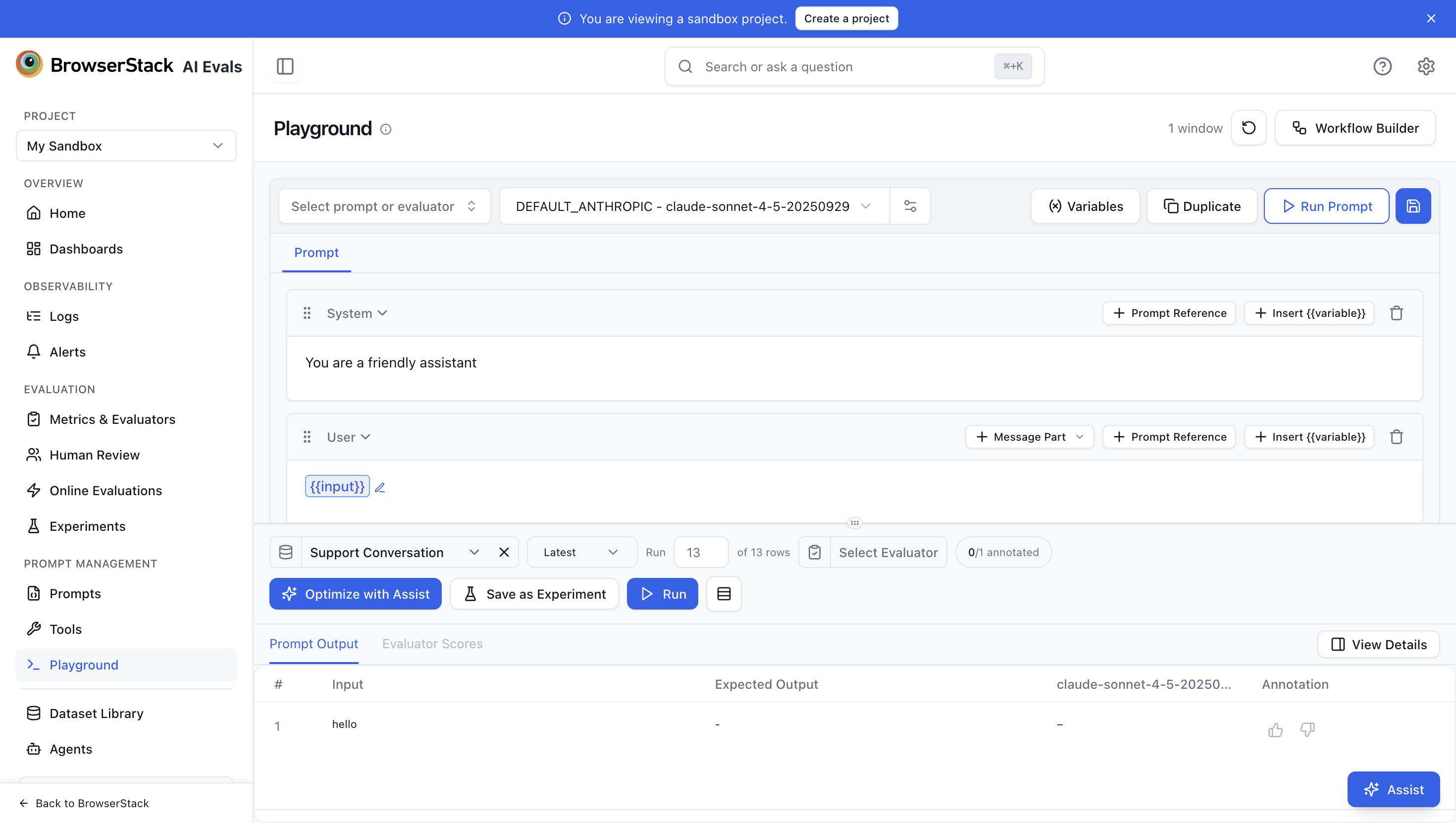
Click Assist (or the Open Assist button) to open the Assist panel. The panel opens as a floating window at the bottom-right of the page. It stays open while you work and you can close it at any time by clicking Close in the panel header.
On first open, and when no prior conversation exists, the panel shows the message "I can help you optimize prompts, analyze outputs, and more." along with two starter suggestions:
- Optimize my prompt based on my annotations
- What patterns separate good and bad outputs?
Click a suggestion to send it as your first message, or type directly in the input field.
Choosing a model
Assist needs a model to run. Pick one from the model selector at the bottom of the Assist panel. The list is populated from the LLM connections configured for your project, so the providers and models you see here are the same ones available elsewhere in the Playground.
If the model selector is empty, no LLM connection is set up yet. Add one in Settings → LLM Connections. Assist can't send a message until a model is selected.
Sending a message
Type in the Ask Assist anything... field and press Enter to start a conversation. Assist reads your current Playground context — the prompt text, any dataset batch results, and any evaluation scores — and begins reasoning.
As it works, Assist may call internal tools to fetch trace data or read your prompt. These are grouped into a collapsible actions chip you can expand to inspect. Click Stop to end a response early.
Reviewing and applying a prompt edit
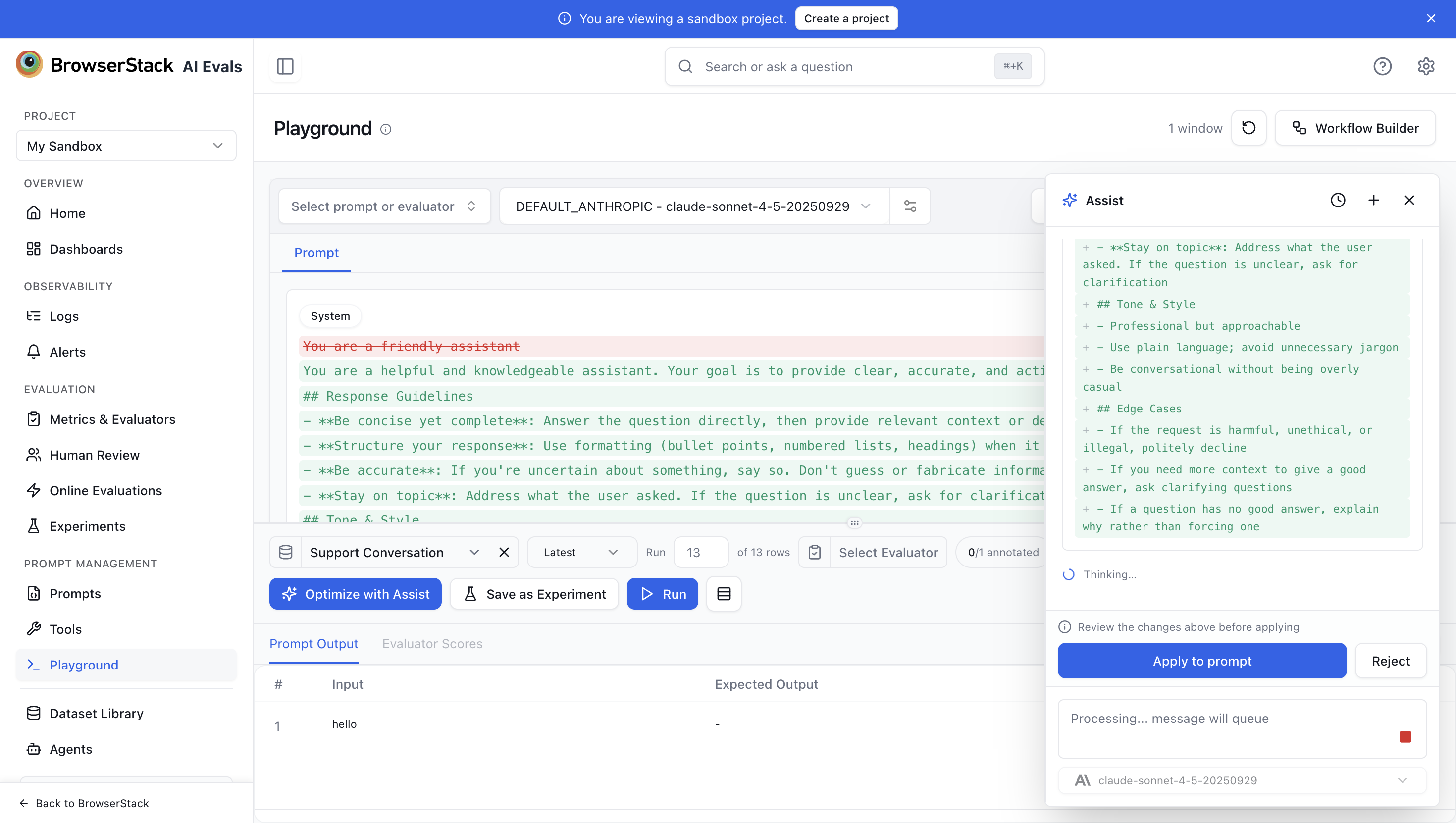
When Assist proposes a change to your prompt, the chat shows a diff of the proposed edit alongside the message.
A bar reading Review the changes above before applying appears above the input field with two buttons:
- Apply to prompt — writes the proposed changes to the prompt editor immediately.
- Reject — discards the proposed changes without modifying the editor.
After you apply or reject, the bar clears and the chat shows a confirmation line (✓ Applied. or ✗ Rejected.). You can then ask a follow-up question or start a new prompt iteration.
Working with multiple Playground windows
If you have multiple Playground windows open, Assist can propose edits to all of them in a single conversation turn.
When two or more windows have pending edits, a bar appears at the top of the Playground summarizing how many pending changes there are across your open windows. Use Accept all to apply every pending edit at once, or Reject all to discard them all. You can also handle each window's diff individually from within the chat panel.
Conversation history
Assist conversations persist across page refreshes. When you reopen the panel, the most recent conversation resumes automatically.
To review or switch between past conversations, click the Session history button (clock icon) in the panel header. The Sessions popover groups your conversations by TODAY, YESTERDAY, and OLDER. Click any entry to load that conversation.
To start fresh, click + New in the Sessions popover, or click the New conversation button (plus icon) in the panel header. The next message you send opens a new conversation thread.
To delete a conversation, hover over it in the Sessions popover and click the delete icon.
Related
- Model Comparison — open multiple windows and compare outputs side by side, then use Assist to optimize across all windows at once
- Dataset Runs — run your prompt against a dataset; the resulting traces and scores are the input Assist uses to propose improvements
- Prompt Testing — write and iterate prompts manually before or after using Assist