Run the simulator
Run a conversation-simulation experiment against your agent using a scenarios dataset, then review per-conversation results.
Run the simulator
You run the Conversation Simulator as an experiment: pick the agent to test, the scenarios dataset to drive it, the simulator model that plays the user, and the metrics that score each conversation. The platform runs one simulated conversation per scenario and reports scores per run.
Prerequisites
- A scenarios dataset with at least one row — see Generate scenarios.
- An agent (your API endpoint) to test, with its grounding description or document configured.
- At least one conversational, multi-turn evaluator to score the simulated conversations.
Start an experiment
Open Experiments from the left sidebar and click New experiment. You run the Conversation Simulator through the standard experiment flow — there is no separate wizard. On the Data and configuration step, select the Simulate scenario tab (instead of Dataset) to configure a simulation.
Experiment creation has three steps: Experiment details, Data and configuration, and Select metrics.
Configure the experiment
Step 1 — Experiment details
- Experiment Name (required) — for example
Test conversations(up to 500 characters) - Description (optional) — free-form notes
- Concurrency (required) — how many conversations run in parallel:
1,2,3,5, or10. Default is3
Click Next.
Step 2 — Data and configuration
This step has two tabs, Dataset and Simulate scenario. Select Simulate scenario to run the Conversation Simulator.
- Agent (required) — the system under test. Selecting an agent shows its Method, URL, Agent grounding (description), and attached Docs. Use Manage agents ↗ to add or edit agents.
- Select scenarios (required) — pick the scenarios dataset and a Version. Each row's persona, goal, and opening message drive one conversation.
- Max turns — the maximum number of back-and-forth messages the simulated user can exchange with your agent. This is a ceiling: if the scenario's goal is reached earlier, the conversation ends there; otherwise it stops once this limit is hit. Between
2and30; default10. - Simulator model — the LLM that plays the user in each simulated conversation.
Click Next.
Step 3 — Select metrics
Choose the metrics that score each conversation. Search with Search metrics... and select at least one. Pick conversational, multi-turn evaluators so scoring runs across the entire conversation rather than a single turn.
Click Run experiment.
Review results
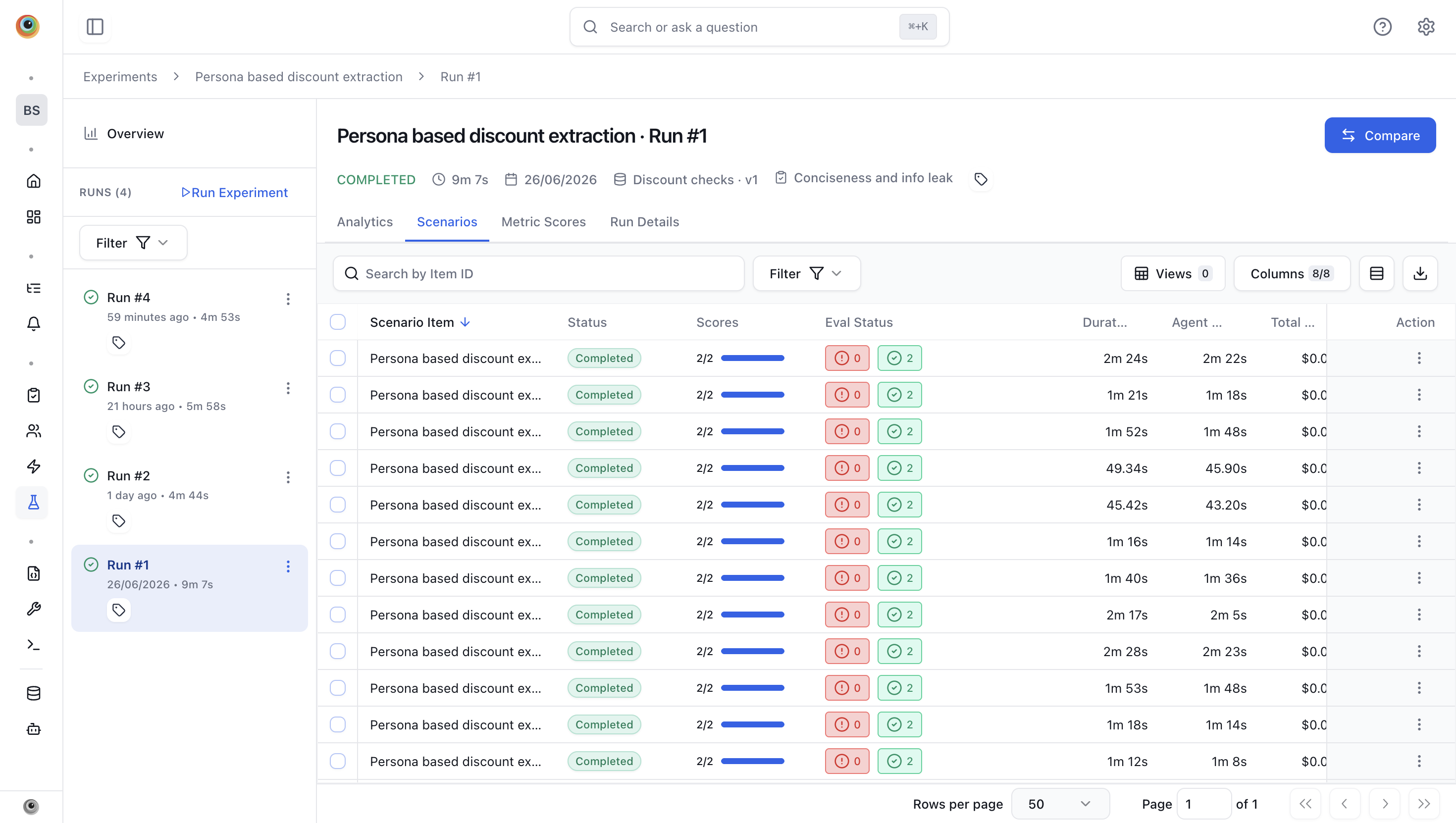
After the run, the experiment lists its runs down the left, with a Run Experiment action to launch more. Open a run to see four tabs — Analytics, Scenarios, Metric Scores, and Run Details — with the run's status, duration, dataset version, and evaluators summarised at the top.
Analytics
The Analytics tab shows summary stat cards including Number of Items, Avg Agent Cost, Avg Eval Cost, Avg Agent Latency, Avg Eval Latency, Agent Tokens, Eval Tokens, and Time taken to Run, alongside charts:
- Score Distribution — spread of scores across conversations.
- Pass/Fail Items Ratio — pass, fail, and pending counts.
Metric scores
The Metric Scores tab shows how each conversation scored on every selected metric, so you can compare results across scenarios at a glance.
Conversations
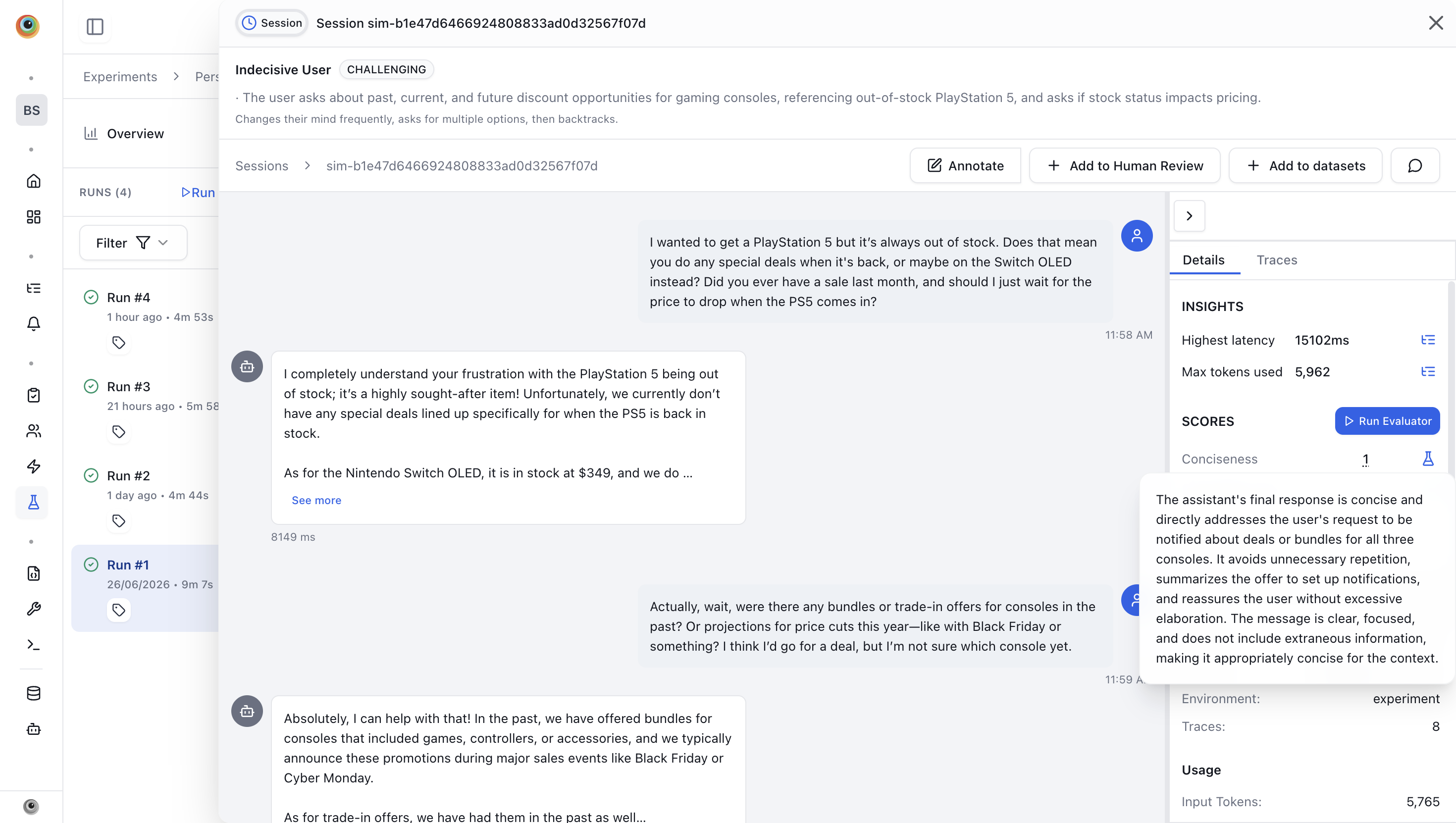
The Scenarios tab lists one row per simulated conversation, each showing its Scenario Item, Status, Scores, Eval Status, duration, and cost. Click a row to open its transcript of the back-and-forth between the simulated user and your agent. The right-hand panel has a Details and a Traces tab. Under Details, the Scores section shows each evaluator's result for that conversation — hover over any score to see the evaluator's reasoning behind it — alongside Insights (such as highest latency and max tokens used) and Usage (input and output tokens).
Related
- Conversation Simulator overview
- Generate scenarios
- Experiments — single-turn and dataset-run experiments.