Use MCP Tools in a Prompt
Enable MCP servers on a specific prompt version and choose which of their tools the LLM can call.
Use MCP Tools in a Prompt
Once a Model Context Protocol (MCP) server is connected to your project, you bind it to a prompt to make its tools callable during a run. Bindings are per prompt version — different versions of the same prompt can use different servers and different tool subsets.
Server configuration lives at Settings → MCP Servers.
When this applies
MCP servers can only be attached to chat-style prompts. Text prompts don't support tool calls.
The bindings you set here flow through to:
- Playground runs of this prompt version
- Experiment runs where this prompt is the candidate
- Dataset runs that use this prompt
In each case, the run resolves the enabled servers, fetches their tool definitions, and exposes those tools to the LLM. Tool calls and their results are captured in the trace as normal observations.
Open the MCP picker
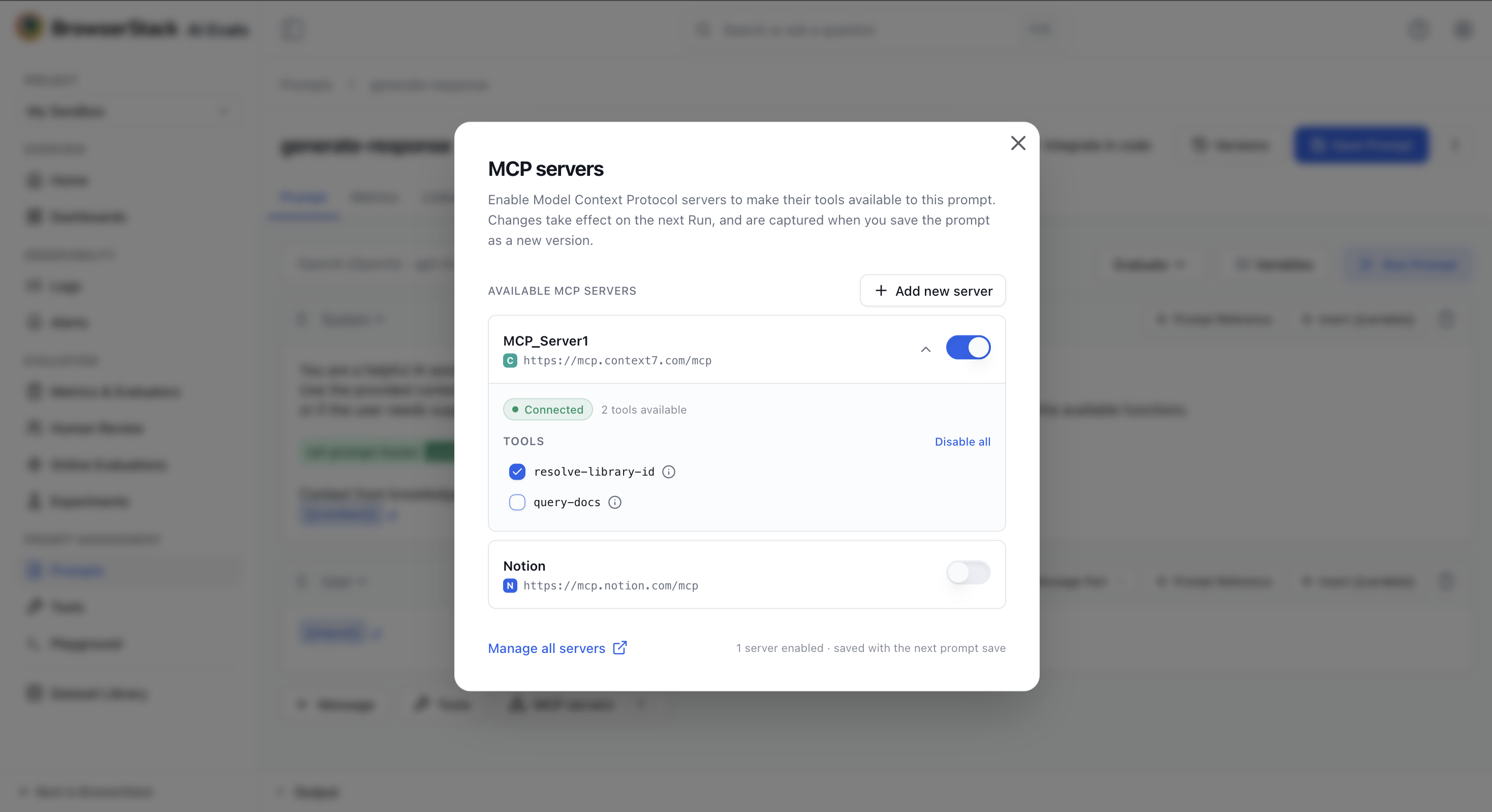
In the prompt editor, locate the MCP servers action near the prompt body. It's only visible for chat-style prompts. Clicking it opens a modal listing every server configured in the project.
If the project has no servers yet, you'll see "No MCP servers in this project yet." with an Add an MCP server link that takes you to Settings → MCP Servers.
Enable a server
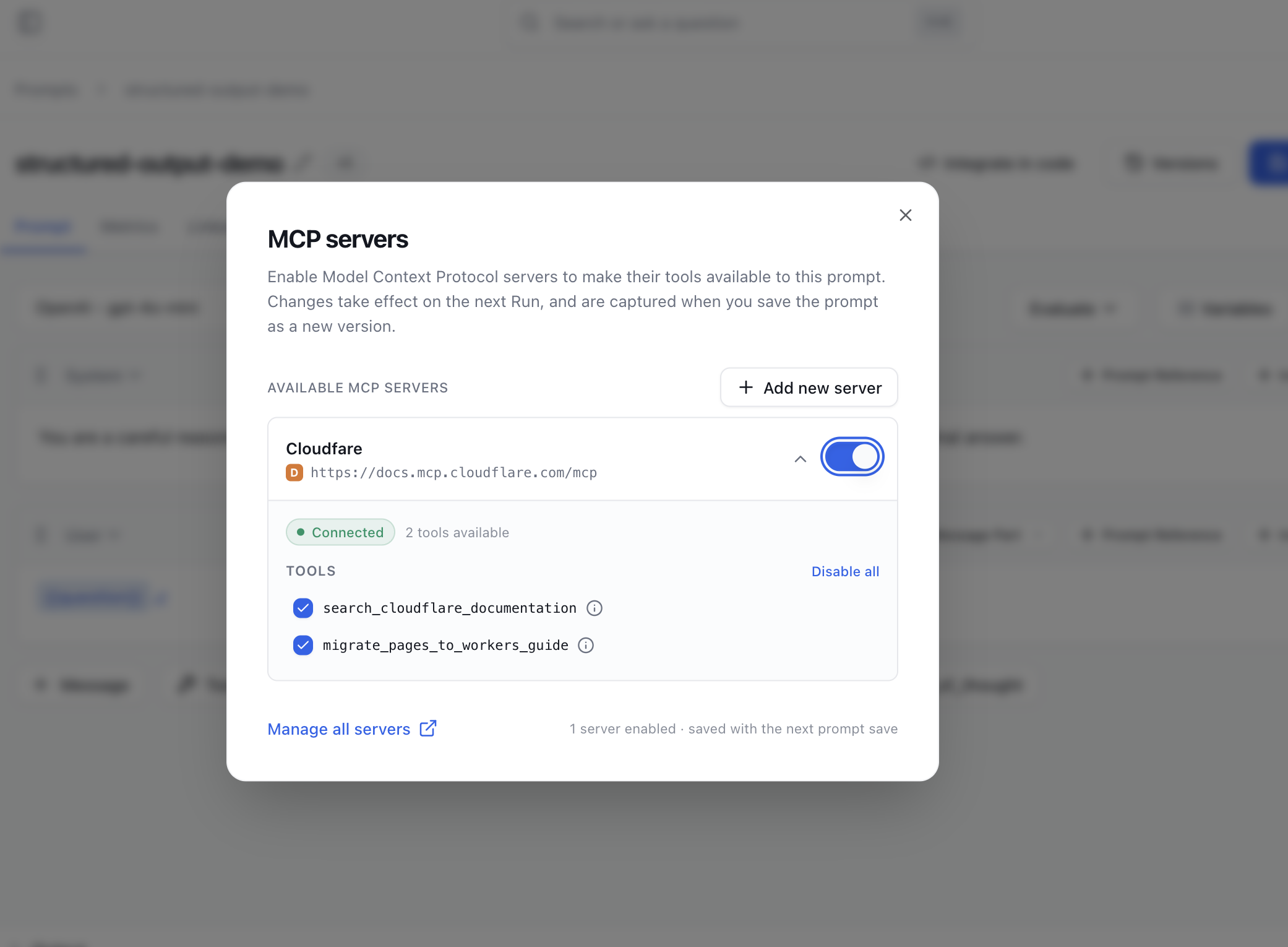
Each server is rendered as a card with an enable toggle.
Toggle the server on
When you enable a server, the card auto-expands to show the server's tool list. Tools are fetched live from the server using the project's stored credentials — you'll see a brief loading state, then the list populates.
Choose which tools to expose
By default, every tool the server advertises is exposed to the LLM. To exclude specific tools, toggle them off in the card's tool list. The bindings store a negative selection — i.e. the tools you've disabled — so newly-added tools on the server are exposed automatically without revisiting this screen.
There's also a master toggle to disable all tools at once (useful when you want a server connected but no tools live yet).
Authenticate if prompted
If the server's status is Pending or Needs re-authentication (typically OAuth), the card shows an Authenticate action. Clicking it opens the OAuth popup; once you complete the flow, the card re-fetches tools and continues with the binding.
Save
Click the save action in the modal footer. The footer's left side shows a live count of enabled servers as you toggle. On success you'll see "MCP Servers Saved — Toggles updated for this prompt version."
Disabled servers (toggle off) are removed from this prompt version's bindings entirely; their tool exclusions are forgotten.
Limits
| Limit | Value |
|---|---|
| Prompt types that support MCP | Chat prompts only |
| Servers per prompt version | No explicit cap; effective limit is provider context size |
Related
- Settings → MCP Servers — connect, authenticate, and manage the servers themselves.
- Prompts in the dashboard — overall prompt editor walk-through, including the Attach Tools to a Prompt flow that complements MCP servers.