Datasets
Work on datasets conversationally with Assist — generate new items from a description, traces, or documents, and edit existing items in bulk.
Assist on Datasets
Assist can build and maintain your datasets from a docked chat panel, instead of curating items by hand. You describe what you want in plain language and Assist either generates new items or edits the ones you already have. Everything it proposes — generated rows or edits to existing items — is staged for review. Nothing is written to the dataset until you commit.
Generate items
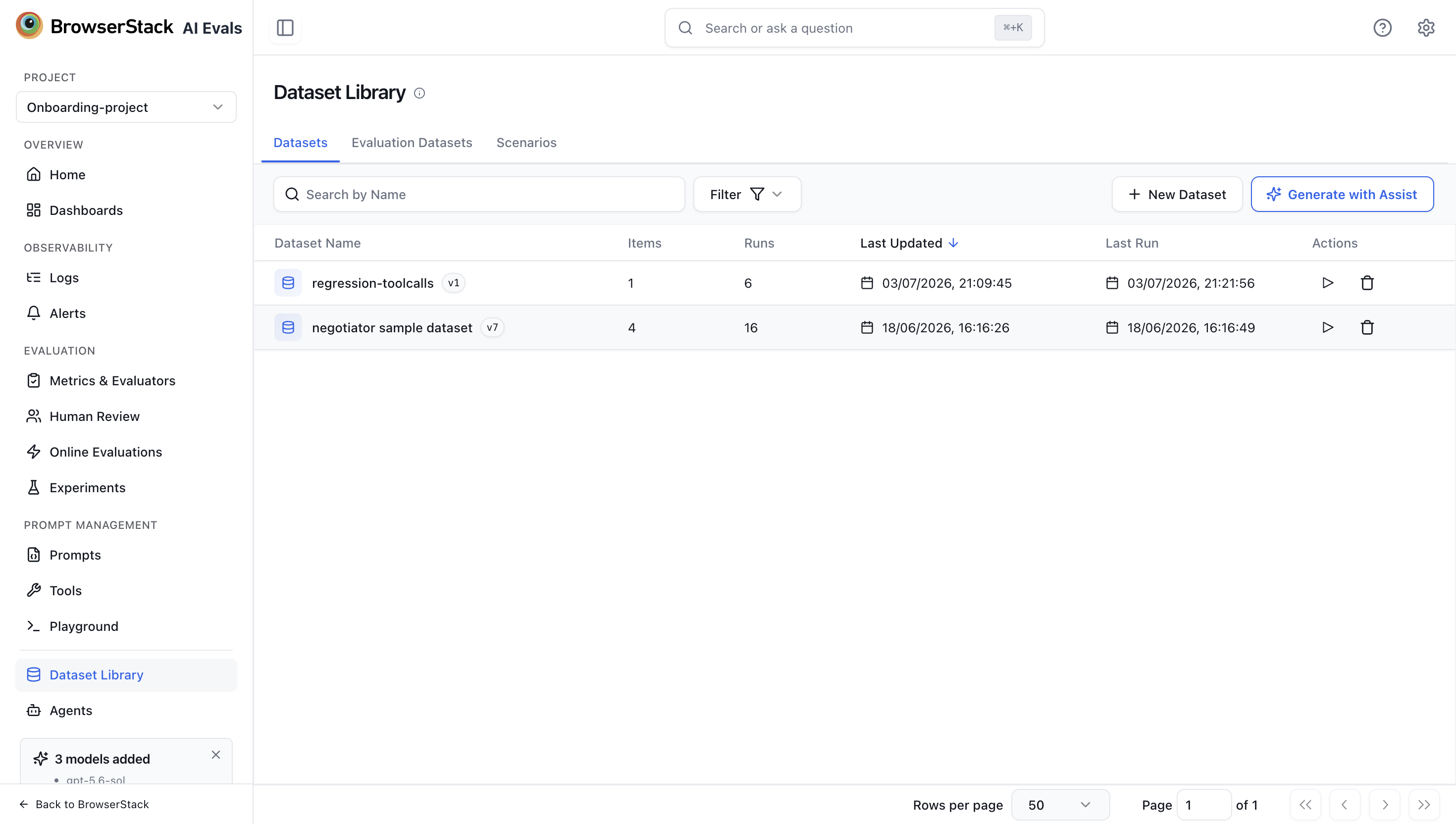
Generate with Assist populates a dataset using Assist. You describe what you're testing, optionally attach production traces and a document to ground the results, and Assist generates candidate items in the background for you to review and commit.
Ways to generate
- From a task description — describe your application and the cases to cover, and Assist generates diverse examples from scratch. Best when starting a dataset and you want broad coverage quickly.
- Grounded on traces — attach real production traces so generated items reflect how your application is actually used.
- Grounded on a document — attach a source document (a spec, FAQ, or knowledge base) so generated items stay faithful to it.
- Extend an existing dataset — generate more items in the style of ones you already have.
You can combine these: attach traces and a document, and add a description to steer the result.
Generation runs in the background, so you can keep working while Assist assembles candidates. You'll be notified when the results are ready to review.
Start a generation
Open Generate with Assist from either place:
- Datasets library — click Generate with Assist in the top-right of the Datasets page to start a new dataset.
- Logs / Traces — select one or more traces, then choose Generate dataset with Assist from the Actions menu. The selected traces are carried over and pre-attached as grounding.
Both open the Generate dataset panel — draft, review, then commit — where you configure the run:
- Dataset name (required) — the name for the dataset you're creating.
- Domain context (optional if you attach grounding) — a plain-language description of the application and the cases to cover. Example:
Developer-support assistant for a REST API. Treat endpoint names and parameters as on-topic; flag answers that drift to billing. - Ground generation on (optional) — click Attach traces to browse, filter, and attach recent traces (up to 50; Assist uses each trace's input, output, and metadata), or Attach document to upload one source file (PDF, TXT, MD, CSV, or DOCX, up to 10 MB). When you request more rows than there are usable traces, Assist generates one item per trace, then similar variations to reach your count.
- Row count (required) — how many items to generate. Accepts 1–50; default is 20.
- Model — the model Assist uses to generate, chosen from your project's LLM connections.
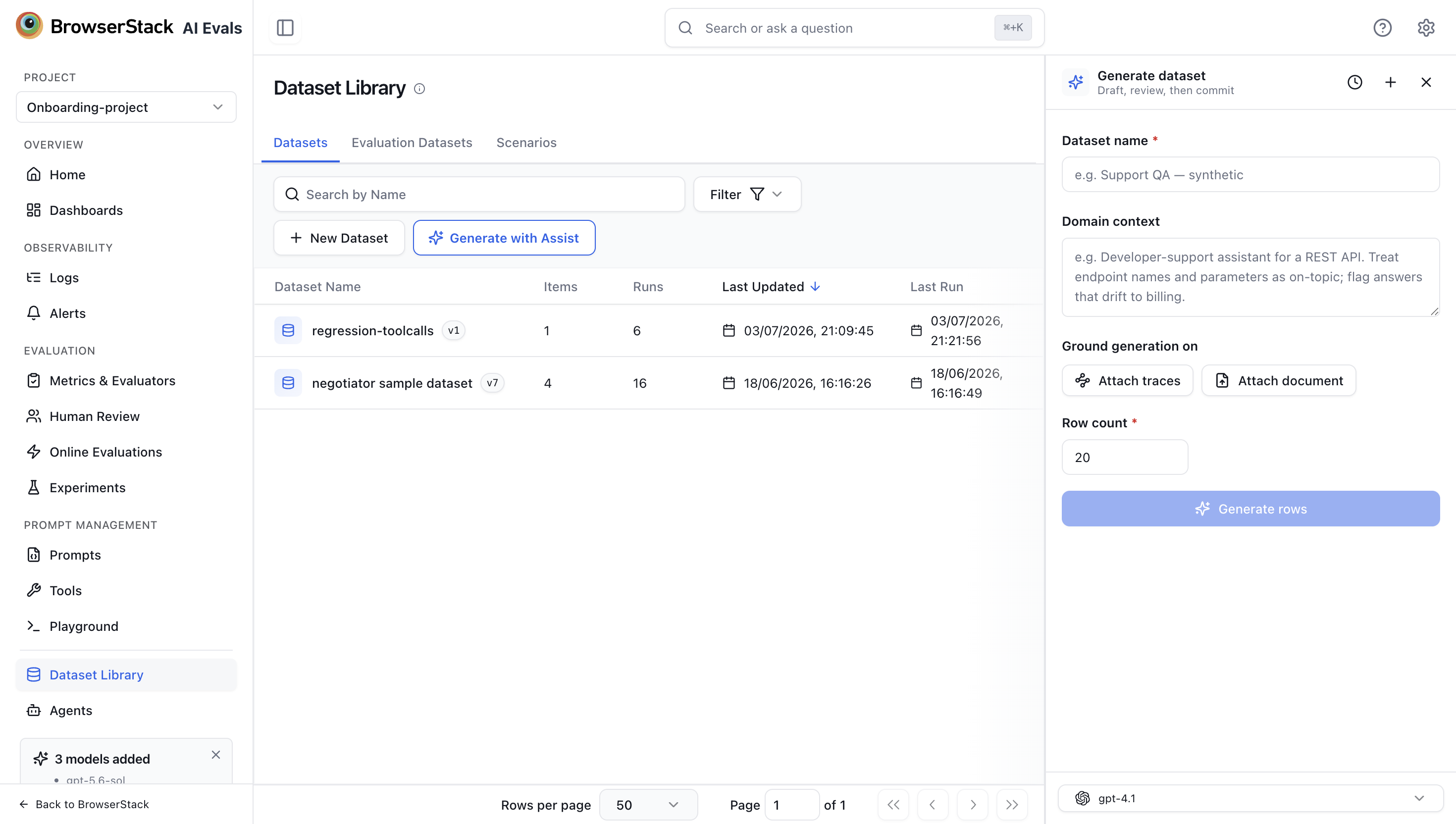
Assist needs at least one of: a domain-context description, an attached trace, or an attached document. Once it's configured, click Generate rows.
Review and commit
When generation finishes, candidates appear in a review grid. Inspect each one, edit values inline, and remove any you don't want. To refine the whole set, send a follow-up message — for example, focus on edge cases — and Assist regenerates with your steer applied. When you're happy, commit to write the items to the dataset.
Items created this way are marked with an AI generated badge in the items table (see Item provenance).
Edit items
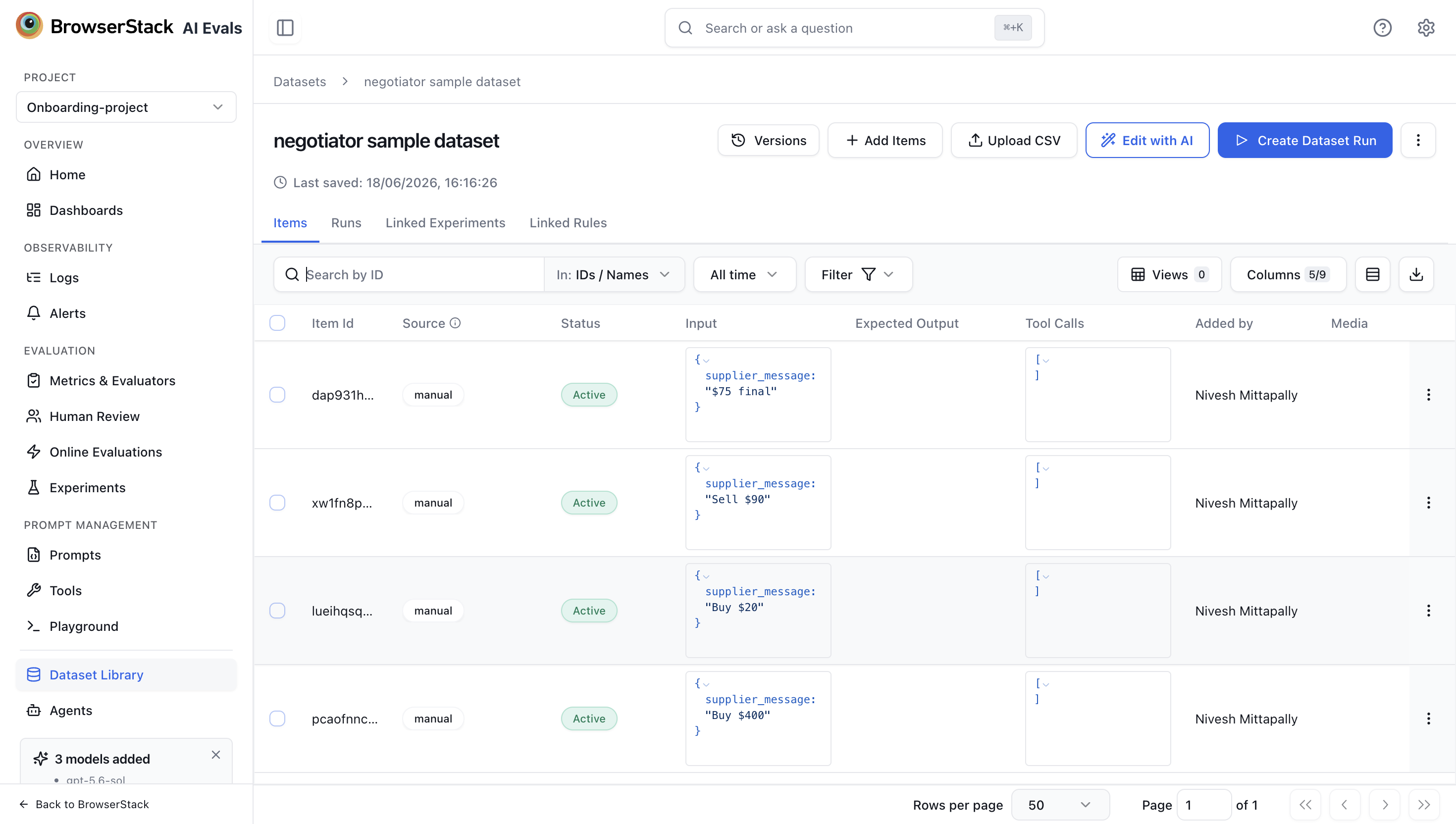
Edit with AI changes the items already in a dataset. You describe the change in plain language and Assist stages the result as a diff you accept or discard — nothing is saved until you accept.
Open a dataset and click Edit with AI on the dataset detail page. This docks the Assist chat panel next to your items. Type an instruction, or pick one of the suggested operations.
Content edits across rows
Assist can rewrite or fill in the values of a column across many rows at once:
- Backfill — fill in values only where the column is empty. Example:
Backfill a category on the rows that don't have one. - Regenerate — rewrite the values, replacing what's there. Example:
Make every expected output more concise.
You control which rows are affected — all rows, the filtered set, or your current selection — and, for structured columns, an edit can target a specific key. A content edit runs in the background across the matching rows (up to 200 at a time) and only ever touches the column you named.
Schema changes
Assist can also change the dataset's structure — add, rename, remove, or mark required a variable. Renames and removals are applied deterministically; adds and "mark required" can use AI to backfill empty cells. Schema changes requested in one turn are staged together and commit as a single new dataset version.
Changing a field's type (for example, from a string to an object) isn't done through Assist — it will point you to the schema editor to make that change yourself.
Review and commit
Every edit is staged as a diff, with the chat panel live above an Accept changes / Discard footer so you can keep refining while you review. Accept commits the edits and saves a new dataset version; Discard leaves the dataset untouched. Because Assist reads the schema and a sample of rows first, it can spot issues on its own — like rows that don't match the schema — and propose a fix without you pointing them out.
Need more data rather than edits? Ask Assist to generate more items from the same panel — it hands off to generation, and the new candidates are reviewed in a grid.
Related
- Assist — the AI agent built into AI Evals, and the other surfaces where you can use it
- Dataset Items — add items manually, upload from CSV, and manage item status
- Dataset Runs — run evaluations against your dataset items