Connection modes
Configure how AI Evals talks to your agent — synchronous responses, asynchronous callbacks or SDK traces, and streaming over SSE — plus authentication, variables, and session handling.
Connection modes
The connection workbench on an agent's page describes how AI Evals exchanges a turn with your agent: the request template it sends, how the reply comes back, and which response fields hold the answer. You pick a Response Mode, configure that mode's specifics, and validate the whole setup with a live test request before saving.
The connection workbench — response modes, request variables, managed authentication, and streaming presets — is rolling out gradually and may not be enabled for your project yet. Contact support to enable it. Projects without it configure agents through the standard request builder with synchronous response mapping — see Create an Agent.
Response modes
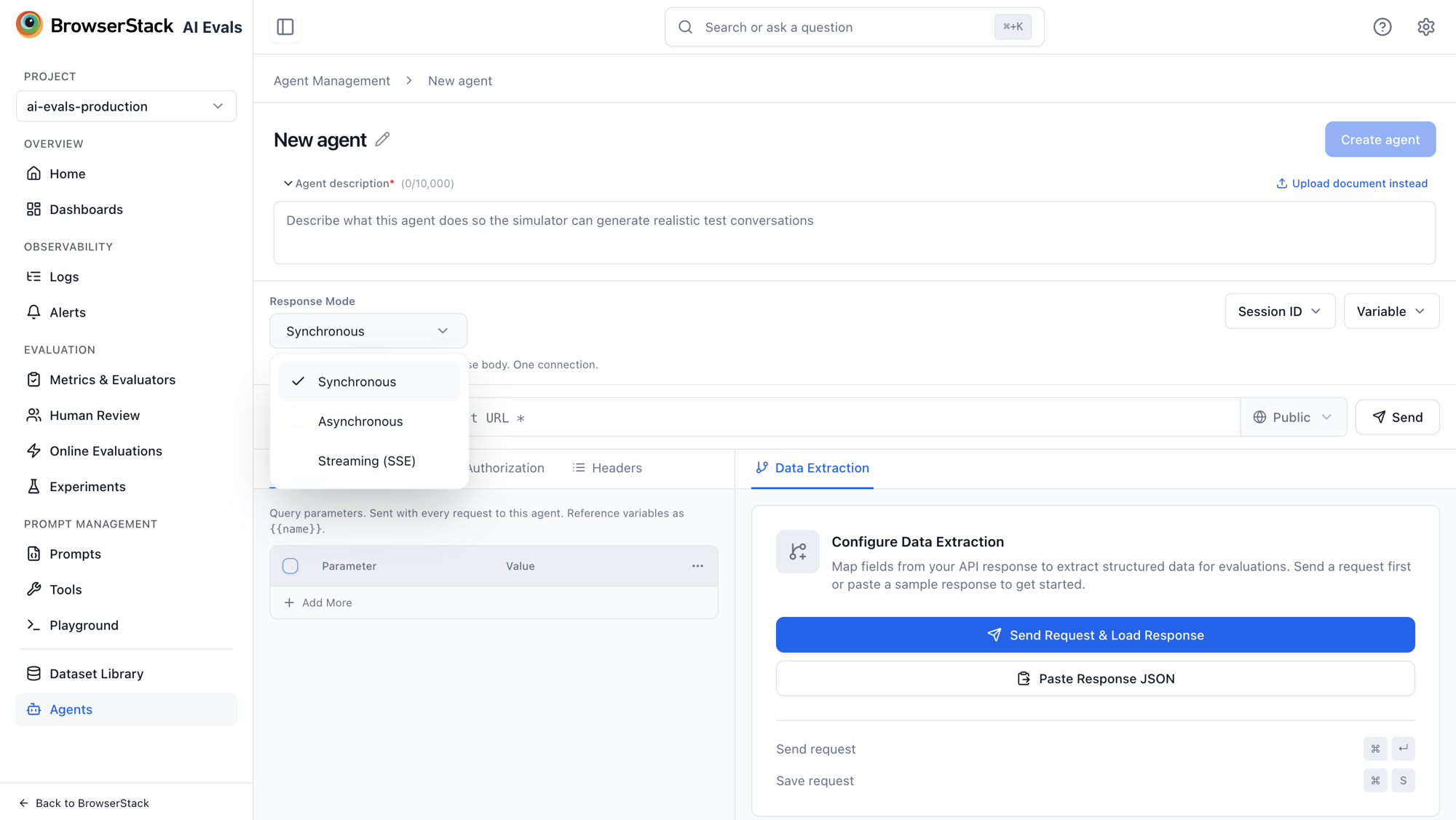
The Response Mode picker offers three ways your agent can reply:
| Mode | When to use it |
|---|---|
| Synchronous | "API returns data directly in the response body. One connection." |
| Asynchronous | Your agent acknowledges the request and finishes later — signalling completion through a callback or an SDK trace. |
| Streaming (SSE) | Your agent streams the reply incrementally over server-sent events. |
The request template
Every mode shares the same request surface:
- A method (GET, POST, PUT, PATCH, DELETE) and request URL, with an inline environment selector for routing through a private environment.
- Four tabs: Params (query parameters), Body, Authorization, and Headers.
{{variable}}tokens anywhere in the URL, params, headers, or body. Tokens are detected automatically — open Variable → Manage Variables to bind each one to a Dataset field, a Text value, or a Project secret. An optional preview dataset supplies example values for testing; runs always use the dataset chosen when the run starts.
A typical body template:
{ "message": "{{input}}", "conversationHistory": [] }Sent a test and got a warning about empty variables? Unbound tokens are sent as blank text — bind them in Manage Variables or pick a preview dataset.
Session IDs
Multi-turn runs need a conversation identifier. The Session ID menu controls both sides:
- Generated by — Agent server generated (your agent issues the ID; AI Evals captures it from the first response and replays it on later turns) or AI Evals generated (AI Evals mints the ID and injects it).
- Insert into — place the
{{sessionId}}token in the URL, Params, Body, or Headers of the request. The token can be placed once; remove it to move it elsewhere.
When the agent issues the ID, map where it comes back: a JSONPath in the response body, or a response header (use Map on the Headers tab).
Synchronous mode
The response arrives in the same HTTP response. Configure extraction in the Data Extraction pane: click Send Request & Load Response to capture a real response (or Paste Response JSON to work from a sample), then map fields in Response Field Mapping:
- LLM Output (required) — the field containing the agent's answer. This is what evaluators score.
- Retrieved Contexts (optional) — retrieved documents for RAG evaluators.
- Session ID (optional) — shown when the agent issues its own session ID.
Asynchronous mode
Your agent acknowledges the request immediately and delivers the reply later. Choose the Completion signal:
Callback
Your agent POSTs the finished reply to a per-run callback URL. Put the {{bs.completionWebhookUrl}} token in the request body where your agent expects the callback URL — each run item gets its own signed URL, so the base URL shown in the workbench is reference only.
Then fill in the required Callback configuration: paste a sample of the JSON your agent will POST back (for example { "response": "Order 2481 was refunded.", "status": "completed" }), click Save body, and map its fields the same way as a synchronous response — LLM Output, and optionally Retrieved Contexts and Session ID. Callback headers can be saved alongside via Edit headers. You cannot save the agent until a sample callback body is configured.
Terminal-status mapping — distinguishing progress callbacks from the final one via a status path and success/error values — is available through the Agents API (callbackConfig). Without it, the first callback completes the turn.
SDK trace
"Nothing to set up. Your agent records its work with the AI Evals SDK, and we pick the reply up from the trace automatically." Use this when your agent is already instrumented with the AI Evals SDK.
Streaming (SSE) mode
The reply streams back incrementally. Streaming has two layers of configuration: the connection topology and the stream grammar.
Streaming setup
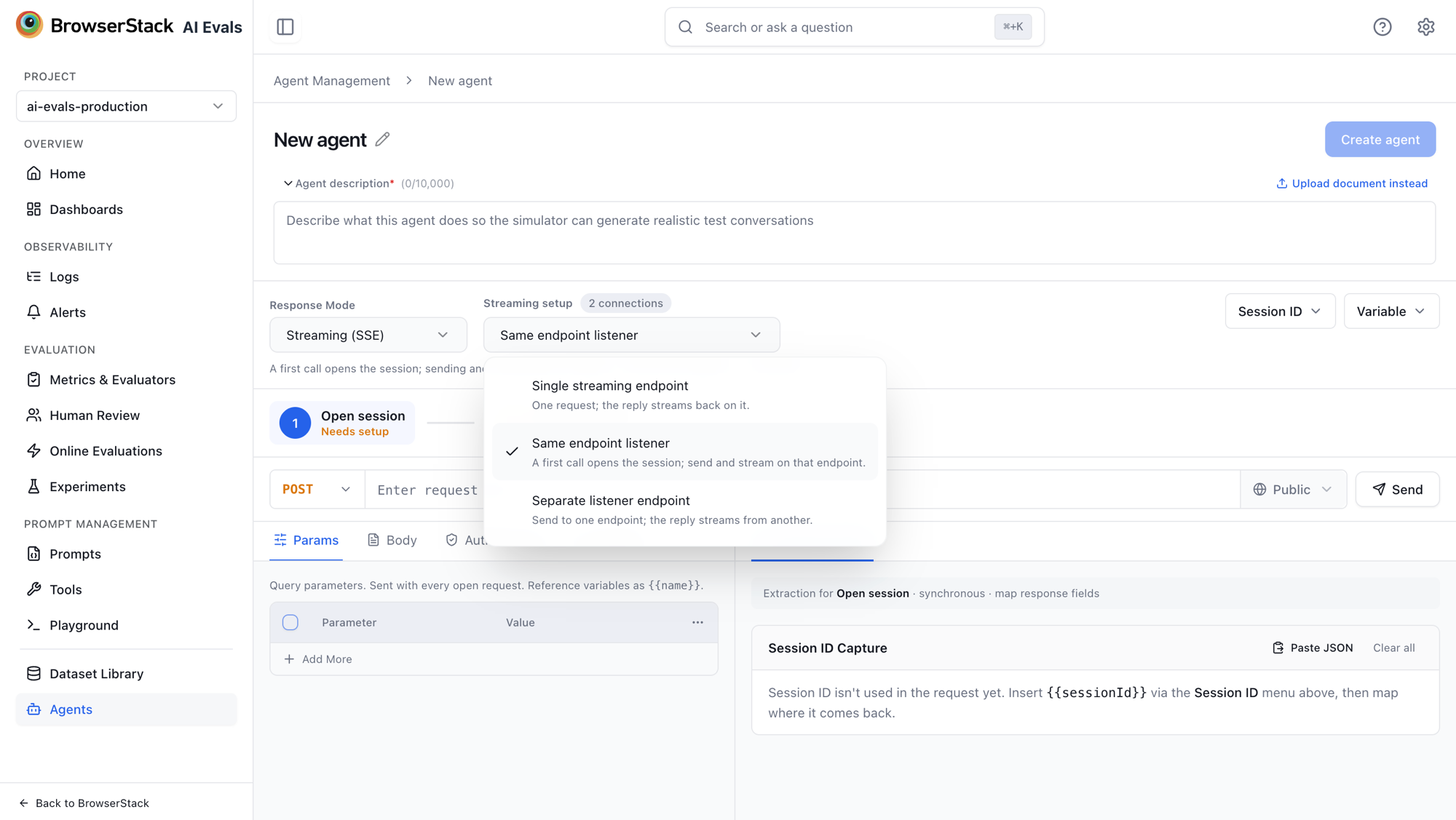
The Streaming setup selector offers three topologies:
- Single streaming endpoint — "One request; the reply streams back on it." (1 connection)
- Same endpoint listener — "A first call opens the session; send and stream on that endpoint." (2 connections)
- Separate listener endpoint — "Send to one endpoint; the reply streams from another." (2 connections)
Two-endpoint topologies show a connection stepper — for example Open session then Send & stream — and each step has its own request template. The open step's response mapper becomes Session ID Capture: map the response field (or header) that carries the session ID, and AI Evals substitutes {{sessionId}} wherever you placed it in later requests.
Protocol and done signal
Pick the Agent protocol that matches how your agent frames its stream. Built-in presets parse the frames for you:
| Preset | Done signal |
|---|---|
| AG-UI | RUN_FINISHED |
| OpenAI Chat Completions | [DONE] |
| OpenAI Responses | response.completed |
| Anthropic Messages | message_stop |
| Vercel AI SDK (text / v4 data stream / v5 UI messages) | stream end / d / [DONE] |
| LangGraph (messages), LangServe | end |
| Firebase Genkit | result |
| Gemini (SSE) | stream end |
JSONL ({chunk} or {data} lines) | stream end |
Choose Custom to describe your own grammar: the transport (SSE anonymous (data: only), SSE named events, Raw text chunks, Prefixed lines, Streamed JSON array, or JSONL (one object per line)), the done signal (a sentinel, named event, finish reason, end of stream, result key, or field value), and where the reply text lives in each frame. An Advanced section covers frames to ignore (for example ping, heartbeat), stop frames, error frames, and a thinking-text path.
Capture and map frames
Click Send & stream response to capture a live stream (or Paste JSONL to work from sample frames). Each captured frame expands into mappable fields — assign roles with Map: Reply text, Done signal, Session ID, Message ID, Thinking, and Error message. Assigning a role back-fills the grammar setup for you.
Timeouts
Streaming turns enforce three independent timers, shown in the Timeouts card:
| Timer | Meaning | Default |
|---|---|---|
| Connection open | "Time to establish the turn connection." | 30 s (max 30) |
| Inter-event idle | "Max gap between two streamed events." | 60 s (max 300) |
| Total turn cap | "Hard ceiling for a single turn." | 300 s (max 600) |
Custom overrides are available for the separate-connection topology via the Override toggle; other topologies use the platform defaults.
Authentication
The Authorization tab supports five Authorization Type options. Credentials are stored encrypted at rest and are never sent back to the browser.
- No Auth — no credentials attached.
- API Key — a Key / Value pair, added to a Header or a Query param.
- Bearer Token — either a Static token (sent as
Authorization: Bearer <token>), or a Token endpoint that AI Evals calls to fetch tokens itself: configure the Token endpoint URL, optional Client credentials, the Token JSONPath (default$.access_token), and the Expiry source (a JSONPath such as$.expires_in, or a fixed TTL). - OAuth 2.0 — Grant type of Client credentials (Token URL, optional Client ID, Client secret stored as a project secret) or Authorization code (an Authorization server URL; AI Evals performs the authorization-code + PKCE exchange in a browser popup). For authorization code, click Connect to sign in; the status badge shows Connected, Re-authentication required, Authentication failed, or Not authenticated, and Revoke removes the stored token. On a new agent, Connect becomes available after you click Create agent — the OAuth grant is stored on the agent record.
- Basic Auth — Username and Password.
OAuth popup didn't open? The browser may have blocked it — allow popups for the dashboard and click Connect again.
Test the connection
Click Send on the request bar (or the send action inside Data Extraction) to run a live test turn with the current configuration — including unsaved changes. The test walks the steps your setup actually uses — Auth, Create session, Send, Stream — and reports each one.
- On success: "Connected · HTTP 200 · 245 ms · response received.", followed by the Assembled reply with time-to-first-token, chunk count, and duration, plus the captured agent session ID.
- On failure the result names the failing step and its evidence — for example "Failed at the Auth step" — and which steps completed, so you can fix the specific configuration and send another test.
Related
- Create an Agent — the base agent setup flow.
- Voice agents — voice agents use a trigger-call flow instead of response modes.
- Agents API — set
response,variableConfig, andcallbackConfigprogrammatically.