MCP Servers
Connect Model Context Protocol servers so external tools become available to prompts in this project.
MCP Servers
The Model Context Protocol (MCP) lets your prompts call tools hosted by external servers — search, retrieval, code execution, vendor APIs. This page is where you connect those servers to a project. Once a server is connected and authenticated, any prompt in the project can be configured to use its tools.
Configuration model
- Servers are project-wide. Adding a server here makes it available to every prompt in the project.
- Authentication is per project. OAuth tokens are stored encrypted; one token per server.
- Tool toggles are per prompt version. A specific prompt version decides which servers it uses and which of their tools it doesn't. See Use MCP tools in a prompt.
Open MCP Servers
Navigate to Settings in the project sidebar, then open the MCP Servers section.
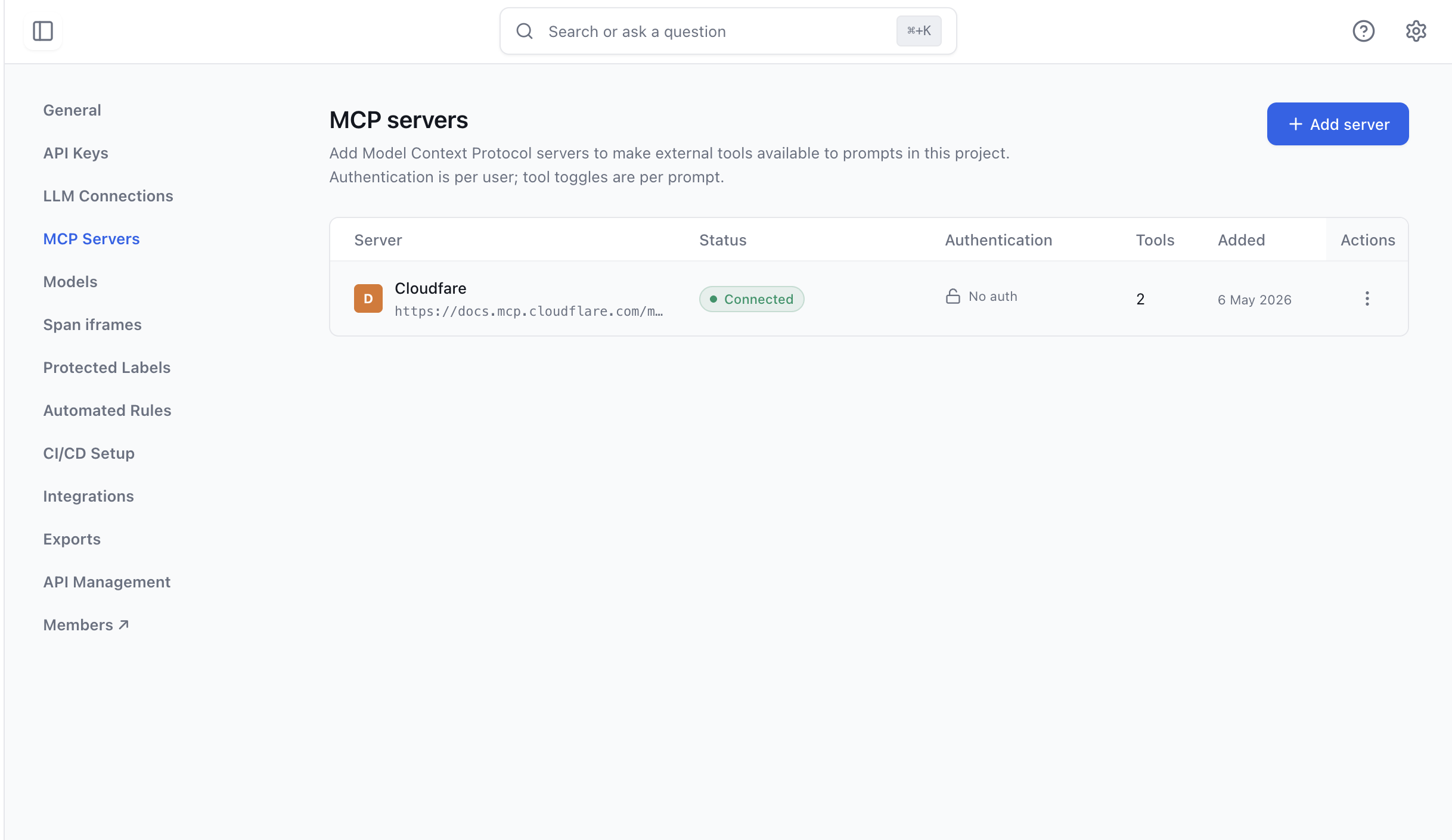
Click Add server to connect a new one.
Connect a server
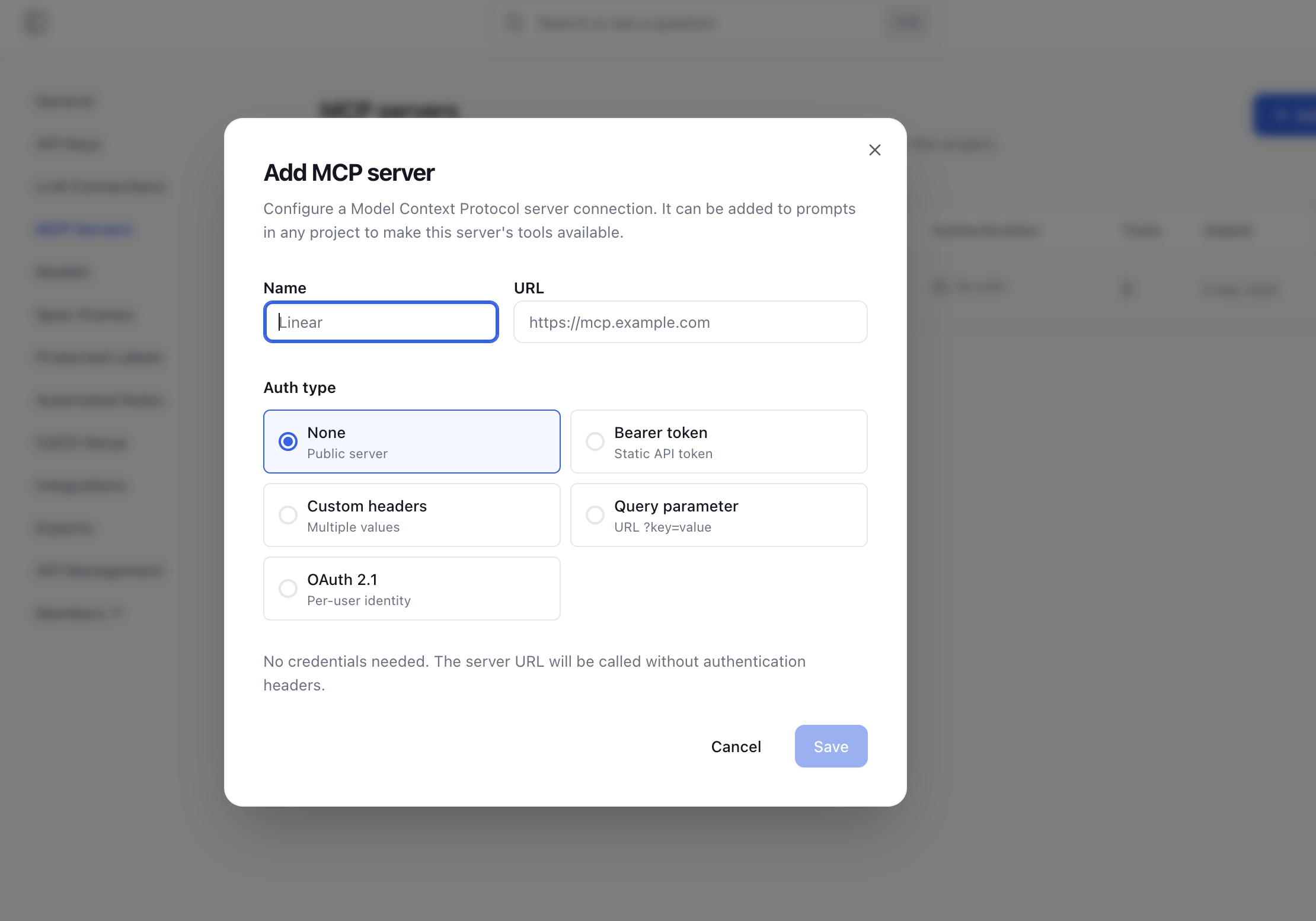
Name and URL
- Name — must be unique within the project, up to 100 characters.
- URL — the server's HTTPS endpoint (
https://). The server must be reachable on the public internet.
Private and link-local addresses are rejected at save time. If the URL fails to discover the MCP server, you'll see "This URL isn't a compatible MCP server."
Authentication
Pick one of five authentication types:
No credentials. Use this for public MCP servers or anything reachable without auth.
A single token sent as Authorization: Bearer <token>. The token is stored encrypted; only the last four characters are shown when editing the server.
One or more custom headers — each a name/value pair. Use this for non-standard auth schemes (e.g. X-Api-Key, X-Tenant-Id). Header values are stored encrypted and never re-shown; header names are remembered and pre-filled when editing.
A name/value pair appended to the URL on every call (e.g. ?api_key=...). Useful for legacy APIs that don't accept headers. The value is stored encrypted; only the last four characters of the value are shown when editing.
Discovery-driven OAuth 2.0 with PKCE. On save, the server is contacted for OAuth metadata; on success, the row appears with status Not authenticated (no token yet). Click Authenticate to complete the OAuth flow in a popup. The resulting access token is shared at the project level — once anyone authenticates, the server is usable across the project.
If a server was added before OAuth discovery captured the authorization endpoint, you'll see "This MCP server was added before OAuth discovery captured the authorization endpoint. Delete and re-add the server." This is a one-time migration step.
Save
Click the save action in the Add server dialog. The server is created, the URL is discovered, and the dialog closes. The new row appears in the table.
For OAuth servers, click Authenticate on the row to complete the OAuth flow before the server can be used.
Server status
Each server row shows one of four statuses:
| Status | What it means |
|---|---|
| Connected | Health check is passing; tools can be listed and called. |
| Not authenticated | OAuth server that has never been authenticated. Click Authenticate on the row. |
| Needs re-authentication | OAuth server whose token has expired or been revoked. Click Authenticate to refresh. |
| Connection failed | Most recent health check failed. The row shows the underlying error in plain language (see Troubleshooting). |
The table also shows the tool count discovered from the server. If the count silently changes (e.g. a token was revoked externally), the row updates on the next refresh.
Edit a server
The row's Edit action opens the same dialog as Add server, pre-filled with the current configuration:
- Name and URL are editable directly.
- Bearer token, header values, and query-parameter values are not shown — only a four-character hint of each. Leave the field blank to keep the existing credentials; enter a new value to replace them.
- Changing the auth type requires re-entering credentials for the new type.
Revoke and re-authenticate (OAuth)
For OAuth servers, two row actions manage the token:
- Authenticate — start a fresh OAuth flow. Use this when the status is Not authenticated or Needs re-authentication.
- Revoke — clear the stored access and refresh tokens. The server stays connected but moves to Needs re-authentication. Use this when you want to force everyone on the team to re-authenticate (e.g. after a credential rotation upstream).
Delete a server
Use the row's Delete action. Before confirming, the dialog lists every prompt that currently has this server enabled — each link opens the affected prompt version. Confirming the delete detaches the server from those prompts and removes it from the project. Prompt versions are not deleted; their MCP-server toggle for this server simply disappears.
Troubleshooting
The errors most commonly surfaced on a failing row:
| Message you see | What it usually means |
|---|---|
| "Couldn't connect to this URL. MCP servers must be on the public internet." | The URL resolved to a private or reserved address, or used a disallowed scheme. Use https:// with a public hostname. |
| "Couldn't connect to this URL." | DNS lookup failed, the connection was refused, or the request timed out. Check the URL and that the server is reachable from the internet. |
| "This URL isn't a compatible MCP server." | The endpoint exists but didn't return the expected MCP discovery metadata. Confirm the URL is the MCP entrypoint, not just the host root. |
Limits
| Limit | Value |
|---|---|
| URL schemes accepted | https:// (public internet only) |
| Server name | 100 characters, unique within the project |
| OAuth flow | Discovery-driven, PKCE (S256), one token per server |
| Headers per header-auth server | No explicit cap; each header name + value is encrypted |
| SDK / REST API support | None — MCP servers are configured through the dashboard only |
Related
- Use MCP tools in a prompt — bind a configured server to a prompt version and toggle which tools it exposes.
- Prompts in the dashboard — the prompt editor surface where MCP servers attach.